

Troubleshooting a persistent black-ink failure after replacing the cartridge means you need to follow targeted steps so you can restore printing quickly: firmly reseat the cartridge, run the printer’s printhead cleaning and alignment routines, and use genuine cartridges to avoid compatibility issues; also avoid touching electrical contacts or printhead nozzles to prevent damage, and check for firmware updates and clogged nozzles before seeking service.
How to Assess the Situation
Start by isolating the failure: print a nozzle check / self-test page from the printer menu to see whether the black channel prints at all, and compare it to color output-if cyan/magenta print but black is blank, the issue is isolated to the black system. Check the error LED codes or status messages, note recent cartridge swaps or firmware updates, and log the printer model and cartridge SKU for reference when troubleshooting or contacting support.
Check Ink Levels
Use the printer’s control panel, desktop utility, or mobile app to view reported ink levels; many black cartridges advertise yields between 100-500 pages depending on model and coverage. Be aware that refilled or counterfeit cartridges can falsely report full but have low usable ink, so if levels read full yet prints are blank, treat the gauge as unreliable and proceed with physical checks.
Examine Cartridge Installation
Power off, open the carriage, then gently remove and reseat the black cartridge, watching for the audible click; verify the protective yellow tape over the nozzles/vent has been removed and that the cartridge is seated in the black slot (not a color slot). While handling, do not touch the copper contacts or nozzle plate, and avoid forcing the cartridge into place-misalignment or physical damage often causes recognition or flow failures.
For deeper inspection, wipe the cartridge and carriage contacts with a lint-free cloth lightly moistened with distilled water or 70% isopropyl alcohol, then let them air-dry ~30 seconds; inspect the vent hole-if blocked, prime by tilting the cartridge gently and tapping to re-establish ink flow, then reseat and power-cycle the printer for 10-15 seconds. If the chip still isn’t detected, try the cartridge in another identical printer or test a known-good cartridge in yours to distinguish cartridge versus printer hardware faults.
How to Clean the Printer
You should clean your printer every 1-3 months or after about 200-500 pages using a lint-free cloth, distilled water, a few Q-tips, and 90% isopropyl alcohol for stubborn ink. Start by powering off and unplugging the unit, then remove cartridges and wipe rollers and contacts gently; avoid rubbing metal contacts or getting liquids into the carriage path. For models like Epson EcoTank or HP OfficeJet, periodic exterior and feed-roller cleaning prevents paper feed and ink-flow problems.
Print Head Cleaning
Run the printer’s built-in head-cleaning utility first – most manufacturers recommend 1-3 cycles and you’ll see improved density in 70-90% of cases; this uses roughly 0.5-2 ml of ink per cycle. When automatic cleaning fails, you can soak detachable heads in warm distilled water for 10-15 minutes or use a syringe to flush heads gently with head-cleaning solution, taking care not to touch electrical contacts or force the carriage.
Nozzle Check and Cleaning
Start with a nozzle check from the printer menu or software: typical patterns show 4-6 color blocks or nozzle rows where gaps indicate clogged nozzles. You should run a single nozzle check before and after cleaning to measure improvement, since patterns let you target specific colors and decide whether to run automated cleaning or proceed to manual methods.
Analyze the nozzle pattern carefully: if one color shows intermittent gaps run up to 3 automated clean cycles, waiting 5-10 minutes between each to let ink settle; if several colors remain missing, perform a deep clean or manual flush, then realign the print head and run another nozzle check. Don’t run more than 4-5 consecutive clean cycles because that wastes ink; if there’s no improvement after manual cleaning, replace the cartridge or seek professional service.
Tips for Proper Cartridge Replacement
When replacing a cartridge, align contacts, remove the protective tape, and seat the unit firmly for 10-15 seconds; run 1-3 nozzle checks or clean cycles if prints remain faint. Use OEM or high-quality compatible cartridges to reduce chip/firmware conflicts, and avoid touching the printhead contacts. Perceiving air bubbles or a dry nozzle after installation indicates you should prime or run additional clean cycles immediately.
- cartridge replacement
- compatibility check
- handling and storage
- Perceiving black ink flow problems, inspect chips and contacts
Compatibility Check
You must match the cartridge part number (e.g., HP 63, Canon PG-245, Epson 410) to your printer model and firmware; some firmware updates block aftermarket chips, so verify compatibility on the manufacturer’s support page before buying. Check the cartridge’s chip code and the printer display for model confirmation, and prefer cartridges labeled for your exact series to avoid a mismatch that prevents black ink recognition.
Handling and Storage
Keep unused cartridges in their original sealed packaging at 15-25°C and 30-50% relative humidity, away from direct sunlight and freezing; shelf life is typically 18-24 months. When you open a cartridge, install it within 10 minutes to reduce drying of the nozzle and avoid touching the contacts or printhead.
Handle cartridges by the plastic housing and wear nitrile gloves if possible; if you touch the contacts, clean them gently with a lint-free cloth and isopropyl alcohol (90%+). If you encounter air bubbles, hold the cartridge upright and tap gently, then run up to three automated head-clean cycles-manual priming may be needed for persistent clogs. Replace cartridges showing leakage or damaged chips to prevent printer hardware faults.
Factors Affecting Print Quality
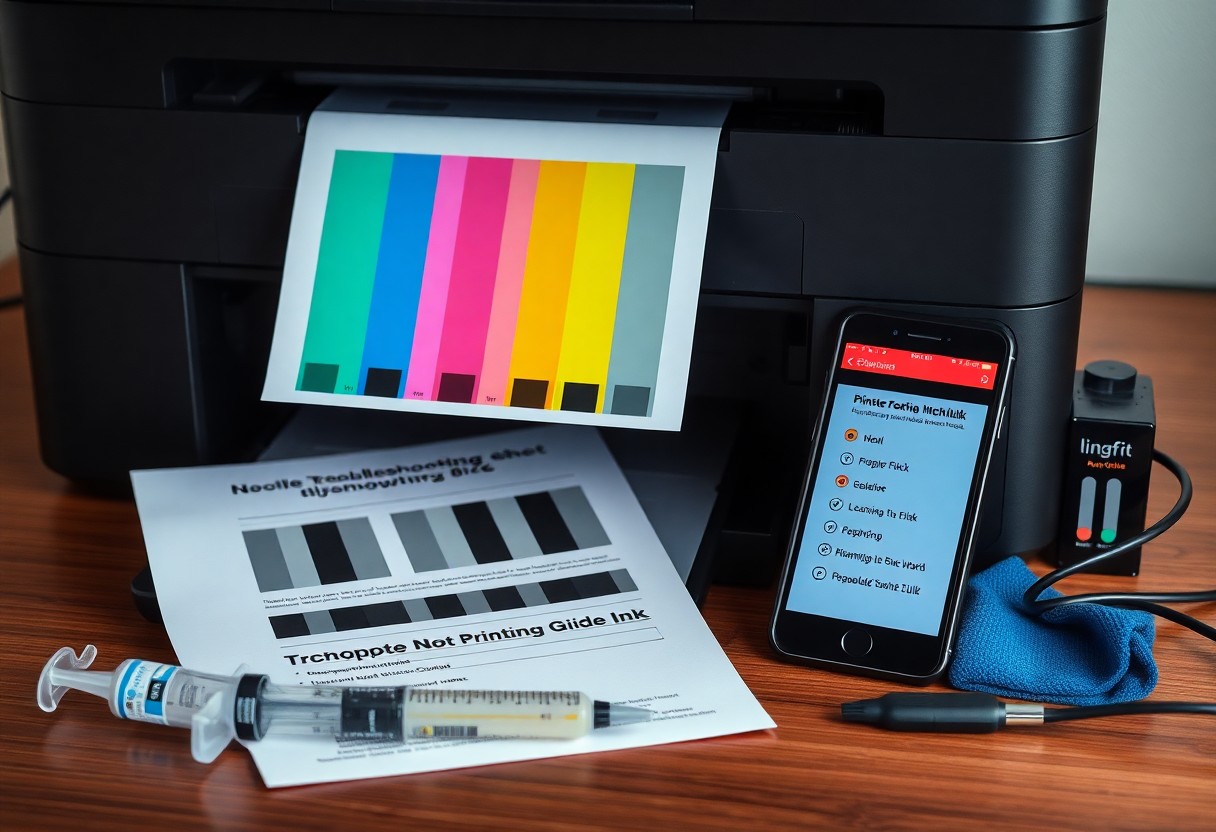
Several variables determine whether your black prints come out dark and sharp: printhead nozzle condition, ink formulation, print resolution (dpi), and how recently you updated the printer firmware/driver. You can see visible banding at 300 dpi and better detail at 600-1200 dpi; clogged nozzles often occur after 2-4 weeks of inactivity. Any unresolved black ink issues usually point to hardware faults or incompatible ink chemistry.
- Printhead
- Ink formulation
- Resolution (dpi)
- Driver/Firmware
- Paper quality
Printer Settings
You should confirm the driver is set to Black/Grayscale and not using composite color black, which dilutes pigment. Select Best/High Quality rather than Draft-Draft can drop to 150 dpi and produce thin blacks. Check advanced options like Color Density or Black Ink Only; some HP and Canon models default to composite black, so toggling this often fixes faded text.
Paper Quality
You’ll notice darker, crisper black on coated or high-gsm (90-120 gsm) paper because it limits ink spread; standard 80 gsm office paper often causes feathering and lighter blacks. Using photo or premium matte stock improves depth and reduces bleed-through, especially with pigment-based inks. Test with a 1-2 page sample before larger print runs.
When you choose paper, check its surface: microporous coatings (used on inkjet photo paper) lock pigment on top for richer blacks, while swellable coatings yield glossy density. Plain uncoated papers can absorb dye inks within milliseconds, reducing optical density by up to 40% versus coated stock. If you print text-heavy documents, try 100-120 gsm multipurpose paper or the manufacturer’s recommended media to cut smudging and improve legibility.
How to Perform a Test Print
Start by printing the printer’s built-in test page from the control panel (often Menu > Setup > Tools > Print Quality Report) or from your OS: Windows: Devices and Printers > right-click printer > Printer Properties > Print Test Page; macOS: System Preferences > Printers & Scanners > Options & Supplies > Utility > Print Test Page. This bypasses most drivers so you can determine if the problem is hardware- or software-related; use the built-in report first.
Standard Test Page
The standard test page shows a solid black block, text samples (usually 10-12 pt), and resolution lines at common settings like 300-600 dpi; if the black block is faded, streaked, or missing while colors print fine, that points to a black-ink nozzle or cartridge fault. You should also check alignment and any visible banding; missing black in the block indicates a local black-path issue.
Color Test Page
The color test page prints CMYK bars, gradients, and a nozzle-check pattern so you can spot banding, streaks, or missing channels; gaps in cyan, magenta, or yellow tell you those nozzles are clogged, while a solid color mix with no black block suggests driver mapping or an empty black cartridge. If color blocks are full but the black section is not, investigate the black cartridge and driver settings.
For deeper troubleshooting, run the nozzle check and then perform up to 2-3 automated head-cleaning cycles, pausing ~5 minutes between cycles to let ink settle; if that fails, try the printer’s deep-clean option or a manual cleaning following the manufacturer’s steps (use distilled water and lint-free swabs on removable heads). If problems persist after cleaning, swap in a known-good black cartridge or replace the print head to confirm a hardware failure.
Additional Troubleshooting Steps
Driver Updates
Check the driver on the manufacturer’s site (HP, Canon, Epson) and via Windows Device Manager or macOS Software Update; if your driver is older than 12 months or shows a different version number, download the latest full-feature driver or the vendor’s Universal Print Driver. You should try both PCL and PostScript drivers when black prints fail; updating drivers often resolves color routing and nozzle-mapping faults without needing hardware fixes.
Resetting Printer Preferences
Use the printer’s menu to perform a factory or network reset (Setup > Restore Defaults), or remove and re-add the device in Windows/macOS to clear preferences and driver bindings. Be aware that a full reset will erase saved Wi‑Fi passwords and custom presets, but it frequently clears corrupted settings that prevent black ink from printing. After reset, reconnect and print a test page.
On Windows, you should stop the Print Spooler (services.msc), delete files in C:\Windows\System32\spool\PRINTERS, then restart the spooler to clear stuck jobs that can bypass black-only channels. On macOS, choose System Preferences > Printers & Scanners > right-click and select “Reset printing system” to remove drivers and queues; re-adding the printer then printing a nozzle check and alignment page confirms whether black nozzle flow is restored.
Summing up
To wrap up, systematically check that your black cartridge is genuine and seated correctly, clean contacts and vents, run nozzle checks and head-clean cycles, align cartridges, update firmware/drivers, and perform power cycles or manual cleaning; if problems persist, test with a known-good cartridge or seek professional service to resolve the issue.