

Most charging issues with your MacBook Pro can be diagnosed and fixed with step-by-step checks of the cable, adapter, port, and software; follow this guide so you can identify whether the problem is a faulty cable, a dirty or damaged charging port, or a software glitch. If you spot a swollen battery or sparks, treat it as a hazard and stop using the device immediately. Many fixes are simple and safe, and you can restore charging without a service visit in most cases.
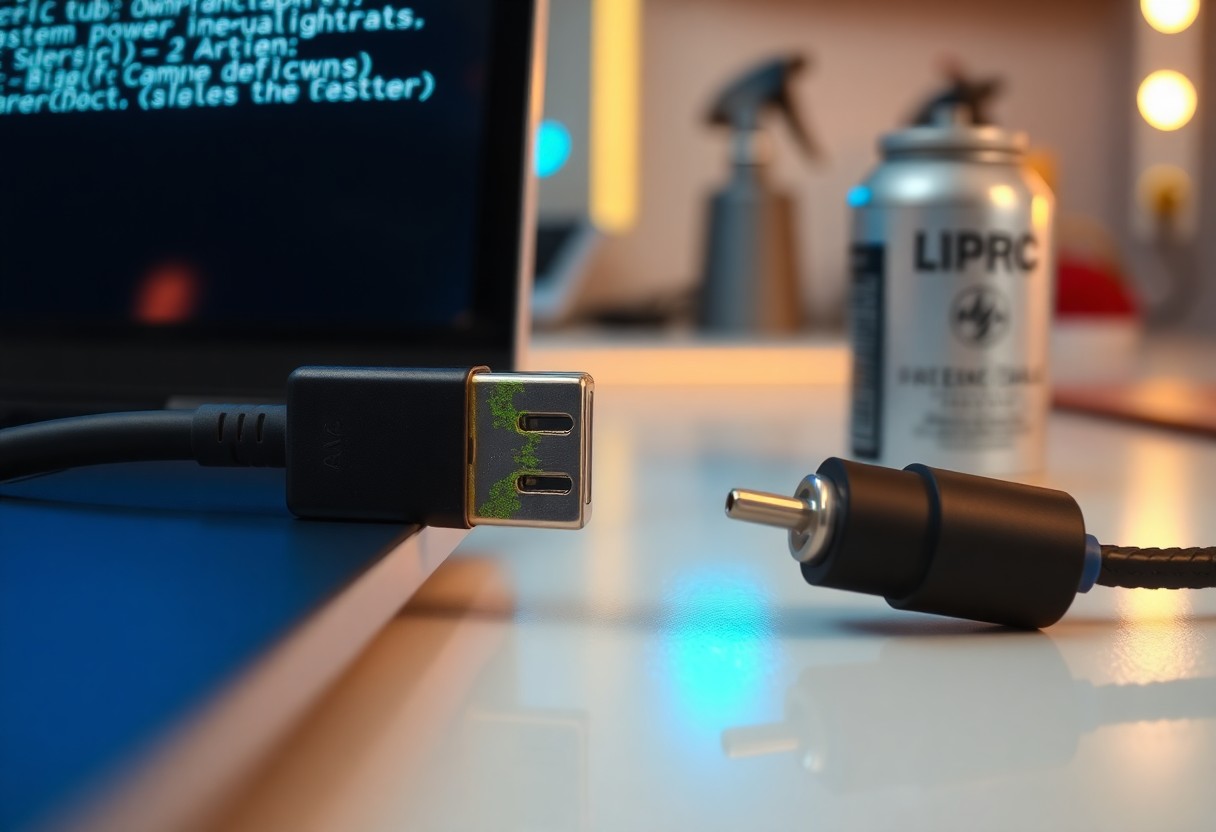
How-To Identify Charging Port Issues
Start by isolating whether the port, cable, adapter or OS is at fault: test with two known-good chargers, inspect the port for debris or bent pins, and note macOS messages like “Not Charging”. Check for visible damage, intermittent connections when wiggling the plug, and whether the charger is detected in System Information; these specific signs differentiate a dirty/physical port from a faulty power source or SMC/firmware issue.
Check the Power Source
Plug into a different wall outlet and avoid untested surge protectors; many users find a faulty outlet causes false negatives. Verify the adapter LED behavior and the printed adapter wattage (common MacBook specs: 61W, 67W, 96W, up to 140W). Open System Information > Power to confirm the charger is recognized and reporting correct voltage/current.
Inspect the Charging Cable and Adapter
Examine the cable for frays, kinks or exposed wires and the adapter for burn marks, melted plastic or a burnt smell-these are dangerous signs that warrant immediate replacement. Confirm the USB-C connector shows no bent pins and that the cable is USB‑IF/Apple‑certified; incompatible or damaged cables often limit PD negotiation and prevent full charging.
To dig deeper, swap with a known-good cable and adapter and test on another Mac or USB-C device; if the Mac reports correct wattage in System Information (e.g., ~61W for a 13″ model) the original cable/brick is likely faulty. Use a magnifier to spot microscopic debris in the port, check the adapter’s printed spec label, and discontinue use if the charger becomes excessively hot or emits smoke-safety over troubleshooting.
How-To Clean the Charging Port
If debris, lint, or corrosion is preventing contact, a careful cleaning often restores charging. You should power off and unplug your MacBook first, then use targeted tools to remove visible particles. Aim for small, controlled actions-2-3 short bursts of compressed air or a gentle sweep with an anti-static brush-to avoid bending pins or pushing debris deeper. Do not insert metal objects that can short the contacts.
Tools Needed for Cleaning
Assemble a can of compressed air (2-3 one-second bursts), a wooden toothpick or plastic probe, an ESD-safe anti-static brush, cotton swabs, and 90%+ isopropyl alcohol for stubborn residue. A bright flashlight and magnifier help spot debris; an ESD wrist strap adds safety when working on the port. Avoid metal picks or household vacuum tips.
Tools and Purpose
| Compressed air | Blow out loose lint without contact |
| Wooden toothpick / plastic probe | Gently dislodge stuck fibers |
| ESD-safe brush | Sweep fine dust from contacts |
| 90%+ isopropyl alcohol | Dissolve sticky residue; evaporates quickly |
| Flashlight / magnifier | Inspect port alignment and debris |
Step-by-Step Cleaning Instructions
Power down, unplug the charger, and wait 30 seconds. Use 2-3 one-second compressed-air bursts from ~5-10 cm to dislodge loose debris. If lint remains, gently coax it out with a wooden toothpick or anti-static brush; avoid metal tools. For sticky grime, lightly moisten a cotton swab with 90%+ isopropyl alcohol and make a single pass. Let the port dry for at least 10 minutes before reconnecting and testing with a known-good charger.
Step Details
| Power off & unplug | Shut down Mac and disconnect charger; wait 30 seconds |
| Compressed air | 2-3 one-second bursts from 5-10 cm to clear loose debris |
| Wooden/plastic probe | Gently lift lint; never use metal to avoid shorting |
| Isopropyl swab | 90%+ IPA on swab, single gentle pass for sticky residue |
| Dry & test | Allow ≥10 minutes to evaporate, then test with known-good charger |
How-To Troubleshoot Software Related Problems
If your MacBook shows “plugged in” but won’t charge, isolate software causes by checking Activity Monitor for runaway processes (look for kernel_task spikes), booting into Safe Mode to disable third‑party kexts, and viewing System Information > Power to confirm AC Charger and Battery health status. Try removing login items, test another user account, and note whether charging behavior changes after a restart or safe‑mode boot – these steps pinpoint whether firmware, drivers, or user software are blocking charging detection.
Reset SMC and NVRAM
On Intel MacBook Pros, reset the SMC by shutting down, then holding Shift + Control + Option (left) and the power button for 10 seconds, release and power on; reset NVRAM by restarting and holding Command + Option + P + R for ~20 seconds until the system restarts twice. For Apple silicon Macs you should simply restart, since SMC functions are handled by the system firmware and cannot be manually reset.
Update macOS for Optimal Performance
Install the latest stable macOS via System Settings > Software Update to receive power‑management and firmware fixes; many updates include SMC/firmware patches that resolve charger detection problems. Updates generally require being plugged in, can take 10-30 minutes, and often restore correct charging behavior without hardware repair. Enable automatic updates to pick up these fixes as soon as Apple releases them.
Before updating, back up with Time Machine and read the update notes for any power‑related fixes; ensure your Mac is connected to a reliable power source and has at least 50% battery or is plugged in, because interrupting a firmware install can be dangerous and may leave the logic board unbootable. If an update doesn’t fix charging, check System Information > Power after the install – changes in “AC Charger Information” or firmware version often confirm the update applied a fix; otherwise try reinstalling macOS from Recovery or applying the latest combo/firmware update.
Tips for Maintaining Your MacBook Pro
Inspect your charging port and connectors monthly, clean with compressed air, and replace any frayed cables within weeks of visible damage; using an Apple- or MFi-certified charger matched to your model (61W, 67W, 96W, 140W examples) prevents under- or over-powering. Avoid liquid exposure and ambient temps below 0°C or above 35°C to protect battery health. Assume that you check the port before plugging in to prevent shorts or debris-related damage.
- Clean port monthly with compressed air
- Replace frayed cables immediately
- Use correct-wattage charger for your model (61W/67W/96W/140W)
- Enable optimized charging in macOS when available
Regular Battery Health Checks
Open System Settings → Battery to monitor maximum capacity and cycle count; most MacBooks are rated for about 1000 cycles. Use About This Mac → System Report → Power to verify cycle count and condition; if capacity falls near 80% or cycle count approaches 1000 within a couple years, plan service. Run checks quarterly and log changes so you can spot sudden drops tied to charging habits or hardware faults.
Best Practices for Charging Your Device
Charge typically between ~20-80% for daily longevity and enable optimized charging to reduce time at 100%; occasionally topping to 100% is fine before long trips. Always use an Apple-certified charger or reputable USB‑PD unit sized for your model-13″ models often use 61W, while 14″/16″ can require 96W or 140W. Avoid charging on soft surfaces that trap heat and unplug when the device is idle for extended periods.
If you use third-party hubs or low-rated bricks expect reduced performance-eg, a 65W non‑PD adapter may only deliver 30-40W to a 16″ MacBook, increasing charge time and surface heat. Prevent heat buildup by keeping vents clear and charging in 0-35°C ambient; for Intel Macs a failed charging state sometimes resolves with an SMC reset, and you can run Apple Diagnostics (restart and hold D) to capture error codes before seeking service.
Factors That Affect Charging Performance
Several variables change how your MacBook charges: adapter wattage, cable integrity, port cleanliness, battery health, and system load all play parts. Test with a known-good 96W or 140W adapter for Pro models to compare rates, and note that heavy CPU/GPU usage can halve charging speed within minutes. Any combination of these factors can cause slow charging, intermittent drops, or the device showing “plugged in” without gaining percent.
- Power adapter – wattage and USB‑C/PD compatibility (61W, 96W, 140W)
- Cable – frays, internal breaks, and low-quality third‑party leads
- Charging port – dirt, bent pins, and debris affecting contact
- Battery health – cycle count and maximum capacity
- System load – heavy apps, external monitors, and background processes
- Environmental conditions – temperature, humidity, and airflow
Environmental Conditions
High heat above 35°C (95°F) or cold below 10°C (50°F) reduces charging efficiency and can trigger thermal throttling; Apple recommends operating between those temps. You should avoid charging in direct sunlight, inside closed cars on hot days, or near humid/salty air that accelerates corrosion. Rapid temperature swings that cause condensation may short contacts, and even a 10-20°C increase around the port can shift charging behavior within minutes.
Age and Wear of Your Device
As your MacBook accumulates cycles, maximum battery capacity drops and internal resistance rises, which slows charging and raises heat; Apple rates many MacBook Pros for 1000 full charge cycles. You can check cycle count and condition in System Settings > Battery to assess whether reduced performance is from wear. Any sustained decline below about 80% max capacity typically signals it’s time to consider service or replacement.
Older batteries also change how the charging circuit behaves: increased internal resistance causes voltage sag under load, so your charger may show it’s connected but deliver little effective charge while you run CPU‑intensive tasks. Swollen cells can physically bend the case or misalign ports, creating intermittent contact and potential safety hazards – if you see bulging, stop using the device and arrange professional service promptly.
When to Seek Professional Help
If after testing with two known-good chargers, resetting SMC/PRAM, and booting in Safe Mode your Mac still shows “plugged in” without charging, you should stop DIY fixes and contact service. If you notice smoke, sparks, burning smell, swollen battery, or bent pins, disconnect immediately and get professional diagnostics; continued use risks further damage or fire. Seek help when charging never exceeds small percentages (e.g., 0-10%) or when intermittent charging persists despite verified chargers and ports.
Signs of Severe Damage
If you see melted plastic, visible corrosion, a battery bulge over ~3 mm, port pins bent or missing, or the charger housing overheating above ~60 °C, treat it as severe. Also watch for sudden shutdowns, kernel panics after plugging in, or persistent high fan speeds. You should power down, unplug, avoid further attempts to charge, and arrange professional inspection to prevent electrical hazards and data loss.
Finding an Authorized Service Provider
Use Apple’s locator to find a nearby Apple Store Genius Bar or Apple Authorized Service Provider (AASP), verify the provider by entering your serial at support.apple.com, and book an appointment. If you have AppleCare+ many repairs are free or discounted; out-of-warranty battery replacements commonly range about $129-$199. Expect typical in-store turnaround of 1-5 business days, or opt for mail-in service if local options are limited.
Before you go, make sure you bring your Mac’s serial number, proof of purchase, and a current backup; ask whether diagnostics fees apply (they’re often waived under warranty) and confirm they use Apple-certified parts. Request a written estimate and a repair-warranty period (commonly 90 days or covered by AppleCare+), check online reviews for the provider’s reliability, and verify AASP status on Apple’s site to avoid third-party scams.
Summing up
With this in mind, you can methodically diagnose charging port issues by inspecting hardware, testing cables and adapters, resetting SMC/PRAM and updating macOS, and seeking professional repair when needed; following these steps helps you isolate whether the problem is the cable, charger, port debris, software, or a hardware fault so you restore reliable charging or get timely service to avoid further damage.