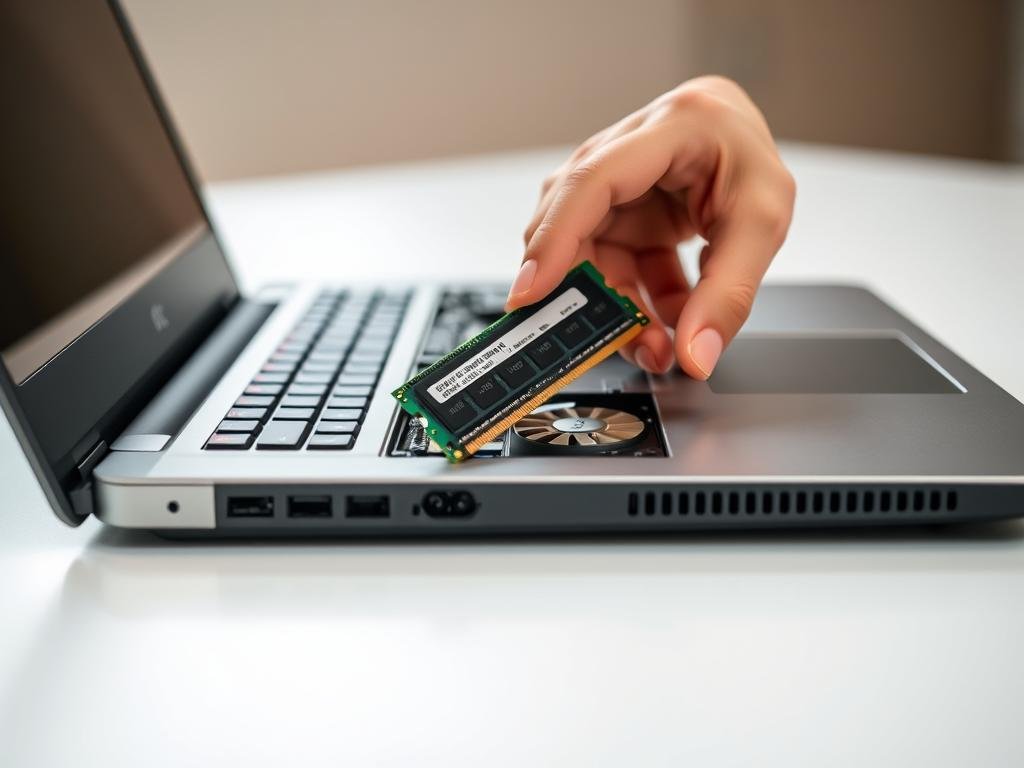

Surprising fact: adding modest memory can cut app load times by half and stop “low memory” alerts on Windows 11 systems that ship with under 8GB.
This concise guide explains why short-term memory matters for your computer and how more capacity boosts everyday performance. You’ll learn key steps in the process and what data to check before buying modules.
First, confirm whether your machine supports a memory change or uses soldered parts. Use the manufacturer tools or a compatibility check like the one at Laptop RAM Upgrade guide to get accurate information.
If memory is fixed, a solid state drive is a practical alternative. See a clear walkthrough on pairing RAM and SSD workarounds at ram and SSD upgrade.
In short: follow a step-by-step process, pick compatible modules, and validate the result so your computer feels snappy again.
Why Upgrading Laptop Memory Improves Performance Today
More working memory gives your system space to hold active data, and that speed shows up immediately.
What it does: memory stores the information your computer is actively using so the CPU can get quick access. That reduces slowdowns when many apps or browser tabs run.
What RAM does for responsiveness and multitasking
You improve system responsiveness because ram provides fast-access working space for active apps. This cuts time spent swapping data to slower storage.
When to consider expanding capacity
Consider this change if light gaming, heavy browsing, or creative tools stutter. Windows will warn you with “Your computer is low on memory” when capacity is tight.
- Fewer stutters in image or timeline editing.
- Less hitching in modern games as textures stream into access memory.
- Smoother multitasking and faster app launches for users who keep many programs open.
| Use Case | Typical Issue | How Memory Helps | Expected Result |
|---|---|---|---|
| Everyday browsing | Multiple tabs slow down | More working space for cached data | Smoother tab switching |
| Creative work | Stutters with large files | Keeps assets in fast access | Fewer pauses during editing |
| Casual gaming | Hitching during level load | Reduces disk swapping of textures | Lower stutter and faster load times |
Laptop RAM Upgrade
Start by confirming whether your machine allows user-serviced memory or if the modules are soldered to the board. Models with integrated memory cannot accept extra modules, so this check saves time and cost.
Check if your laptop supports user-upgrades or has soldered memory
Open the service guide or use the manufacturer memory guide to see if slots exist and how many. Some Dell systems have memory integrated into the system board and are not serviceable.
Understand SO-DIMM vs DIMM and memory generations
Laptops use SO-DIMM modules; desktops use full-size DIMMs. Match the exact generation—DDR3, DDR4, or DDR5—because motherboards accept only one type. Installing the wrong type can cause damage.
Know your slots, maximum capacity, and supported speeds
Count the number of slots—many models have two. Verify maximum supported capacity, supported speeds, and voltages (for example DDR4 vs DDR4L). Also confirm your OS architecture; a 32-bit system will only recognize about 4GB.
- Plan: replace modules or add to empty slots based on slot count and max capacity.
- Verify: model-specific specs so modules are ram compatible.
- Prevent: avoid mixing unsupported types or speeds to reduce instability.
| Item | Typical Detail | Why it matters | Action |
|---|---|---|---|
| Form factor | SO-DIMM for laptops | Ensures physical fit and connectivity | Buy SO-DIMM modules only |
| Generation | DDR3 / DDR4 / DDR5 (one supported) | Wrong type will not work and may damage slot | Match generation exactly |
| Slots & max | Often 2 slots; max varies by model | Exceeding max can cause no-boot or ignored memory | Check manufacturer specs or manufacturer memory guide |
Plan Your Capacity: How Much Memory You Need for Your Use Case
Start by looking at how you actually use your computer. That helps you pick a capacity that matches real needs and avoids wasted spend. Below are practical targets based on common workloads and modern windows behavior.
Casual use and light games
8GB minimum: Choose this if you mostly browse, stream, use email, office apps, and play light games. Windows 10 and 11 run best with at least 8GB to avoid frequent paging to slower storage.
Productivity and heavier multitasking
16GB target: Move to 16GB when you keep dozens of tabs, large spreadsheets, or multiple apps open. This capacity reduces swapping and improves multitasking responsiveness for most users.
Pro apps and modern gaming
32GB for professionals: Pick 32GB if you run virtual machines, heavy creative tools, or modern gaming with high-res textures. Larger pools cut stutter and keep assets in fast memory for consistent performance.
- You should consider upgrading when the system consistently swaps to disk during normal work — that signals capacity is the bottleneck.
- Look ahead to upcoming software and game releases and pick a capacity that offers headroom so your computer stays responsive over time.
- Match the memory type and generation your system supports to avoid compatibility issues as you scale capacity.
- Plan for dual-channel by using two identical modules when possible to balance capacity with bandwidth.
- Verify slot count to decide whether to add a module or replace both, and document your target so you can compare pricing and availability.
For a quick compatibility check and to learn more about how much memory your computer needs, see how much memory your computer needs.
Confirm Compatibility and Find the Right Modules
Start by gathering exact model details so you can match parts to your system. Use the manufacturer’s service manual for authoritative information on supported type, generation, voltage, and maximum memory.
Next, run an automated scanner. The Crucial System Scanner can detect compatible kits in under 60 seconds, or use the Crucial Upgrade Selector to search 100,000+ supported products. Dell’s site lets you identify your product by Service Tag and order parts from Parts and Accessories.
What to verify before you buy
- DDR generation, SO‑DIMM form factor, and supported speed.
- Voltage and whether the system needs matched pairs for dual‑channel.
- BIOS/UEFI support for target speeds and any XMP/EXPO profiles.
- Avoid mixing incompatible types or voltages that can cause boot failure or slowdowns.
| Source | What it gives | Action |
|---|---|---|
| Service manual | Specs & slot count | Record max and part numbers |
| Crucial tools | Suggested compatible kits | Pick listed modules |
| Vendor videos | Install tips | Watch before you install |
Tip: backup your data before you install memory. If you need help to diagnose a slow machine, see this guide to fix a slow computer.
Safety First: Protect Your Laptop, Data, and Modules
Before you touch any parts, follow simple safety steps to protect your system and data. These quick precautions reduce the chance of damage and make the process smoother.
Cut power and discharge residual charge
Shut down your computer, unplug the power cable, and remove the battery if the design allows. Press and hold the power button for five seconds to discharge residual power even when the battery is fixed.
ESD and workspace setup
Work on a clean, hard surface. Avoid carpet and remove plastic bags or papers that can hold static.
- Ground yourself with an ESD wrist strap or touch unpainted metal before handling any module.
- Hold modules by the edges and never touch the gold contacts or chips.
- Place removed parts on anti-static packaging and keep screws in a magnetic tray.
- Back up important files to external or cloud storage so your data and storage are protected before you begin.
| Action | Why | Tools | When |
|---|---|---|---|
| Remove power and battery | Stops current that can harm parts | Screwdriver, time | Before opening case |
| Discharge residual charge | Clears stored electricity | Power button (5 sec) | After unplugging |
| Ground and handle safely | Prevents ESD damage to memory | ESD strap, anti-static mat | While touching modules |
| Document and follow instructions | Speeds reassembly and avoids errors | Phone for photos, service manual | Throughout the process |
Step-by-Step: Install New RAM in Your Laptop
Follow these hands-on steps to access the memory bay and install new modules safely. Read each item first, then proceed with calm, steady motions.
Open the bottom panel safely and access the SO-DIMM slots
Turn off the laptop completely and place it upside down on a static-safe surface.
Remove all bottom screws and keep them in a small container so nothing gets lost.
Use a thin plastic prying tool to lift the panel. Work around the perimeter to avoid bending or scratching the chassis.
Remove existing modules by releasing side clips
Peel back any protective covers to reveal the SO‑DIMM slots.
Spread the side retention clips and the module will pop up at an angle. Slide it out gently and set it in anti‑static packaging.
Align the notch and firmly seat the new modules
Align the off‑center notch with the key in the slot, insert the module at a shallow angle, then press down until the clips click.
Apply even pressure—often about 30 pounds—to ensure the module is fully seated. Partial insertion causes no‑boot problems.
Reassemble the laptop and restore power
Reinstall any protective shields, replace the bottom panel, and tighten screws in a cross pattern for even pressure.
- Reconnect power and boot the computer; the system usually auto‑detects added memory.
- Make sure fans spin and there are no unusual beeps; if anything seems wrong, power down and reseat the module.
- Keep the instructions and, if unsure, consult a short video for your model to confirm clip orientation.
Tip: follow this guide step by step and handle modules by the edges to avoid contact with contacts or chips.
Post-Upgrade Checks and Validation in Windows
After you reboot, take a moment to confirm the system recognizes the new memory and is running at the expected speed.
BIOS/UEFI detection: most platforms auto-detect memory using JEDEC defaults. You only need to enter BIOS if you want to enable an XMP/EXPO profile or confirm reported timings.
In Windows, open Settings and Task Manager to verify capacity, slot usage, and reported speed. The Performance tab shows real-time memory use and gives quick information about available headroom.
Quick validation checklist
- Boot into BIOS/UEFI once to confirm total capacity and speed if you changed profiles.
- Check Settings > System > About and Task Manager > Performance for total memory and slot layout.
- Observe memory utilization while you run regular apps to measure real-world performance gains.
| Check | What to look for | Action |
|---|---|---|
| Dual-channel | Two identical modules shown | Confirm bandwidth improvement |
| Event logs | Memory-related warnings | Reseat modules or run diagnostics |
| Diagnostics | Windows Memory Diagnostic errors | Isolate faulty module |
Keep your BIOS/UEFI updated to improve compatibility and speed reporting. Document final capacity, slot layout, and observed boot behavior for future reference.
Troubleshooting: When the Upgrade Doesn’t Work as Expected
If your system fails to boot after installation, don’t panic — simple checks often fix the problem.
First, power down, remove AC and the battery, then reseat each module carefully. Partially inserted modules or misaligned notches cause no‑boot issues and odd beep codes. Test one module at a time and try a different slot to isolate a bad module or faulty connector.
Common causes and quick fixes
- Check maximum supported capacity and number of slots; exceeding limits can cause no video or instability.
- Confirm supported speed and voltage; mismatches can force downclocking or cause crashes under load.
- Update BIOS/UEFI to improve memory support and reporting for newer generations.
- Clear CMOS/RTC per the service manual if the system refuses to POST, then reset date, time, and boot order.
Run a memory diagnostic to spot errors; replace faulty modules under warranty. If your laptop has soldered memory or is at max capacity, consider upgrading to an SSD to speed app loads and improve everyday responsiveness.
| Symptom | Likely cause | Action |
|---|---|---|
| No POST | Bad seating or wrong capacity | Reseat; test single module |
| Crashes | Speed/voltage mismatch | Check specs; match modules |
| Persistent stutter | Other bottlenecks | Check storage, thermals, diagnostics |
Note: document part numbers, final capacity, and slot layout so support can help quickly if you contact the manufacturer.
Conclusion
You now have a clear path to make your system feel faster without buying a new machine. Adding compatible memory modules is a cost-effective, user-serviceable way to boost everyday performance.
Follow safe handling, pick the correct type and number of modules, and install new parts carefully so the BIOS auto-detects them. Verify capacity and slot layout in Settings or BIOS and document your final product details for future reference.
If your model cannot accept added memory, consider an SSD for big gains in app launches and file access. With this article as your guide, you can repeat the process for other computers and help fellow users confidently.