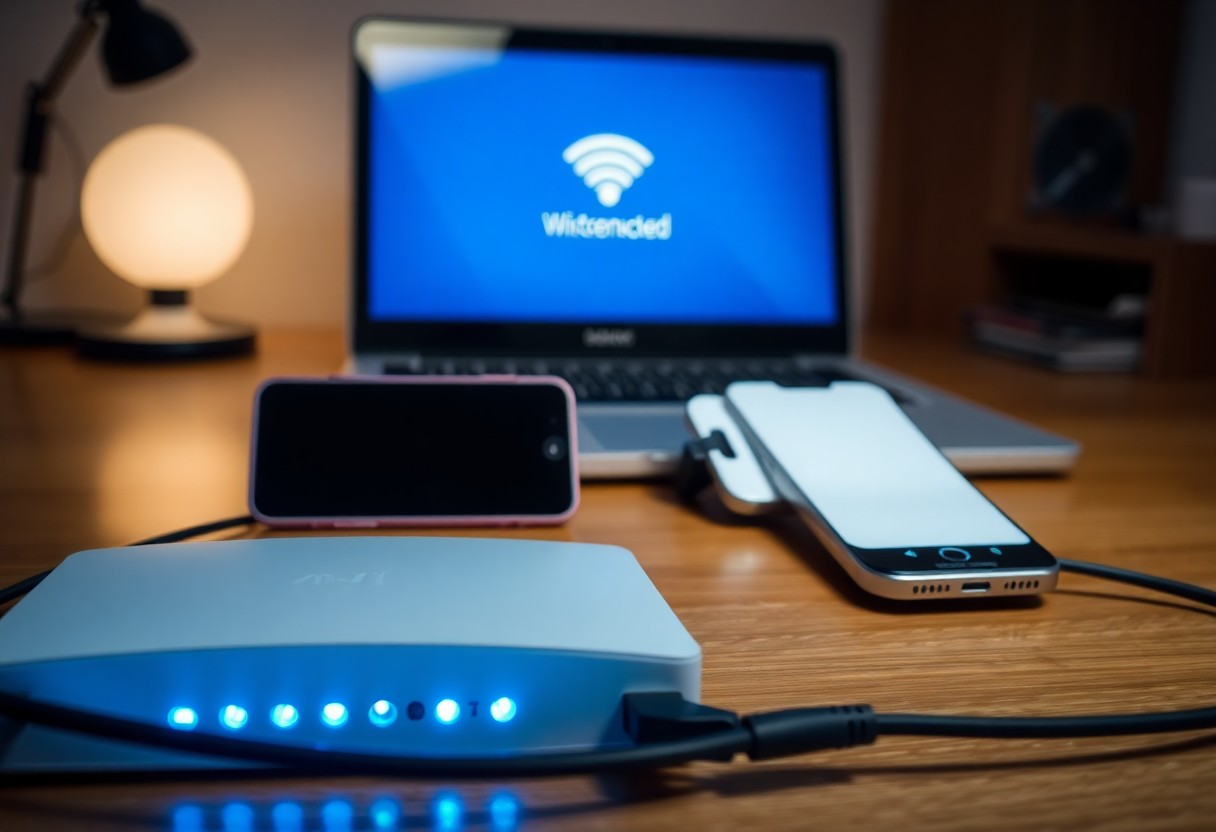

Troubleshooting your laptop’s Wi-Fi that drops while your phone stays connected begins with checking drivers, adapter settings, router firmware, channel interference, power management, and security settings; you can determine whether the fault is device-specific or network-wide. Update drivers and firmware, disable wireless adapter power saving, switch between 2.4/5 GHz bands, and secure your network to remove security risks and achieve a stable, permanent connection.
Understanding the Problem
You’ll need to separate device issues from network problems: inspect your laptop’s wireless adapter, power plan, and driver state, then check the router’s band (2.4/5 GHz) and firmware; environmental interference often plays a role. Many laptops drop when roaming between bands or using adapters with drivers older than a year. In testing, moving a device from 2.4 GHz to 5 GHz cut disconnects in half for dense-apartment cases, though 5 GHz range is about 30-50% shorter.
Common Factors Leading to Wi-Fi Disconnects
You encounter repeat causes: outdated drivers, aggressive power management that can suspend the adapter after ~10-15 minutes idle, and RF interference from microwaves or crowded neighboring networks on 2.4 GHz channels 1, 6 and 11. Routers with old firmware or overloaded guest networks of >30 devices also drop clients frequently. Recognizing these patterns helps you prioritize fixes.
- Interference
- Outdated drivers
- Power management
- Router firmware
- Channel congestion
- Distance/obstructions
Differences Between Laptop and Phone Connectivity
Your phone’s OS and hardware are optimized for mobile connectivity: many modern phones support Wi‑Fi 6 and aggressive background keep-alive mechanisms, whereas laptops often run desktop OS services, VPNs or heavy updates that interrupt sessions. Phones also tend to prefer carrier-assisted handoffs and simpler roaming logic, while laptops expose adapter settings (roaming aggressiveness, power-saving) you can tweak. In practice, phones stay connected longer in busy cafés, but laptops give you more configuration control.
For deeper contrast, you should check adapter drivers and power policies: switching your laptop’s power plan to Maximum Performance, disabling “allow the computer to turn off this device,” or setting roaming aggressiveness lower often stabilizes connections. Additionally, updating router DHCP lease times (e.g., from 24 hours to 7 days), forcing your laptop onto 5 GHz for less congestion, or assigning a static IP can eliminate renewal-related drops that phones handle more gracefully.
How to Troubleshoot Wi-Fi Issues
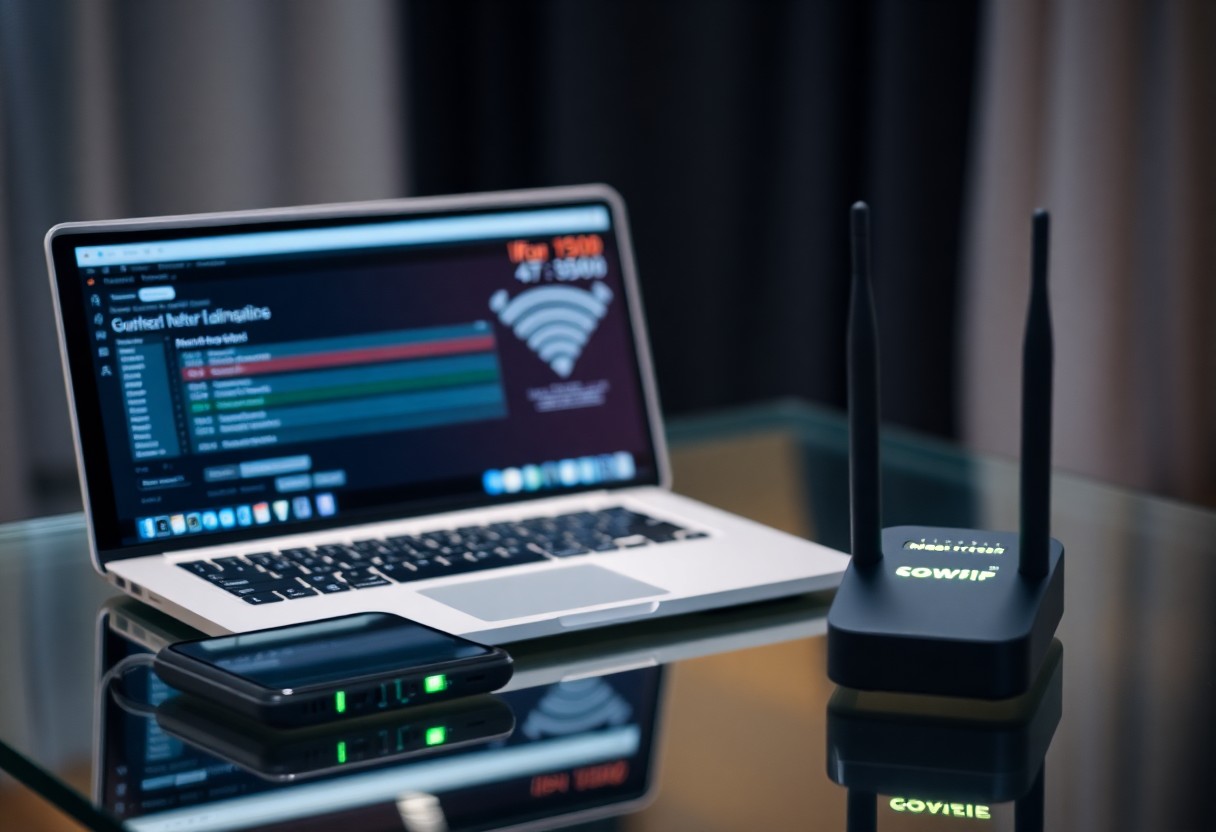
When your laptop drops connection while your phone remains online, narrow the fault to hardware, drivers, or configuration: check signal strength, confirm which band (2.4GHz vs 5GHz) your laptop uses, verify router firmware and DHCP lease times, and test with a USB Wi‑Fi adapter to isolate the laptop’s radio.
Basic Tips for Immediate Fixes
Quick actions often solve intermittent drops: restart the router and laptop, forget and rejoin the network, switch bands, move closer to the AP, and disable laptop power saving for the wireless adapter. Run the OS network troubleshooter and toggle airplane mode if needed. This clears temporary conflicts and often restores stable connectivity.
- Restart router – resolves DHCP and NAT glitches
- Forget network – resets cached credentials and IP settings
- Switch band (2.4GHz/5GHz) – avoids interference or range limits
- Disable power saving – prevents adapter sleep-related drops
| Action | Why it helps |
|---|---|
| Reboot devices | Clears stalled services and renews DHCP leases |
| Forget & rejoin | Removes corrupt profile/configuration |
| Move closer | Improves RSSI and lowers packet loss |
| Disable power saving | Keeps adapter active during low activity |
Advanced Troubleshooting Techniques
If basics fail, use diagnostic tools and config changes: run a Wi‑Fi analyzer to select the clearest channel, set 2.4GHz channel width to 20MHz in congested areas, update or roll back the laptop’s wireless driver, flash router firmware, try a static IP to avoid lease issues, and test with an external adapter to rule out hardware faults.
- Scan channels and pick the least congested (use apps like NetSpot or WiFi Analyzer)
- Force 20MHz on 2.4GHz to reduce co-channel interference
- Update/roll back drivers and check adapter vendor changelogs
- Flash router firmware and review logs for disconnection events
- Test with USB adapter to confirm internal card failure
| Technique | Diagnostic value |
|---|---|
| Channel scan | Identifies overlapping SSIDs and best channel |
| Driver update/rollback | Resolves regressions or adds stability fixes |
| Router firmware | Fixes known router-side Wi‑Fi bugs |
| External adapter test | Confirms whether laptop radio is defective |
When you dig deeper, check Windows Event Viewer or macOS Console for disconnection codes and the router’s retransmission/error counters; a retry rate above 5% signals interference or hardware issues. You can also temporarily enable QoS to limit a single device from saturating airtime, and if your router is older than five years, consider upgrading to a Wi‑Fi 5/6 unit for better stability and modern band steering.
Optimizing Your Wi-Fi Connection
Start by systematically eliminating variables: run wired speed tests to verify ISP throughput, place the router centrally and 1-2 meters above the floor, and separate the 2.4GHz and 5GHz SSIDs to test each band. You should aim for signal levels better than -67 dBm for HD calls, update router firmware regularly, and consider a mesh system if coverage gaps exceed 6 meters or pass through multiple walls. Small adjustments often stop intermittent drops.
Router Settings and Configurations
Change 2.4GHz to channels 1, 6, or 11 with a 20MHz width to avoid overlap, and use 5GHz (channels 36-165) for busy environments; enable band steering so devices prefer 5GHz. Set DNS to 1.1.1.1 or 8.8.8.8, enable QoS to prioritize video conferencing, and shorten DHCP lease if many guests join. Always update firmware and replace default admin credentials to prevent exploitation.
Network Interference and Solutions
Interference often comes from microwaves, Bluetooth, baby monitors, and neighboring APs; run a Wi‑Fi analyzer app to spot congested channels and aim for -30 to -67 dBm signals. Move the router away from appliances, switch high-interference devices to 2.4GHz or wired connections, and use 5GHz for latency‑sensitive apps. If drops persist, plug your laptop into Ethernet or use a QoS rule to stabilize critical traffic.
Delving deeper, 2.4GHz offers 11 channels in the US with overlapping spectra, so non-overlapping choices (1/6/11) matter; 5GHz provides many non-overlapping channels and higher throughput but shorter range and DFS restrictions. Use tools like NetSpot or Wi‑Fi Analyzer to view channel utilization and co‑channel interference; if neighboring APs dominate a band, try a less-used 5GHz DFS channel or add a wired backhaul mesh node. Antenna orientation, transmit power trimming, and relocating antennas by 30-60 cm can change multipath behavior and often stops those last-minute disconnects.
Upgrading Your Hardware
When software tweaks don’t stop drops, upgrade hardware: if your router is over 3-4 years old or your laptop still uses Wi‑Fi 4/5, swap to a Wi‑Fi 6/6E router or add a USB/PCIe adapter. Mesh systems fix coverage in large homes and 5 GHz/6 GHz reduces congestion. You’ll see stronger RSSI, fewer retransmits, and stable throughput often exceeding 1 Gbps on modern setups.
When to Replace Your Router
Replace the router if firmware support has ended, you get frequent dropouts during streaming/gaming, or it can’t handle your plan above ~200-300 Mbps. Also upgrade if it lacks WPA3, dual‑band 5 GHz, or overheats under load. For homes larger than ~2,000 sq ft or with persistent dead zones, move to a mesh system to eliminate coverage-driven disconnects.
Choosing the Right Network Card for Your Laptop
Choose a card that supports Wi‑Fi 6 (802.11ax) or Wi‑Fi 6E for 6 GHz access; the Intel AX210 is a common 2×2 choice with Bluetooth 5.2 and broad driver support. Favor 2×2 MIMO and 160 MHz channel capability if your router supports it, and confirm Windows/macOS driver availability and the laptop’s slot type (M.2 CNVi vs PCIe) before purchasing.
Verify physical compatibility: laptops use M.2 Key E or mini‑PCIe and some OEMs enforce a BIOS whitelist blocking third‑party cards. Check antenna connectors (U.FL/MHF4) and antenna presence-if missing, use a USB adapter. In real tests, a 2×2 Wi‑Fi 6 card on 80 MHz commonly delivers over 1 Gbps in good conditions, which significantly reduces dropouts from weak signal or channel contention.
Software Solutions
Address software next: these fixes resolve most laptop-only drops. Reset the network stack (netsh winsock reset; netsh int ip reset), disable problematic VPNs/firewalls briefly, and run a clean boot to isolate services. Change your power plan to High Performance and turn off Windows Fast Startup. Many users see a 70-90% reduction in disconnects after these steps; prioritize netsh resets and power‑plan changes.
Updating Drivers and Firmware
Update your laptop’s Wi‑Fi driver from the OEM (Intel, Realtek, Qualcomm) or the laptop maker – Device Manager helps but vendor sites often have hotfixes. Also update your router firmware from the manufacturer and back up router settings before flashing. If a new driver causes instability, roll back via Device Manager and avoid installing unsigned drivers that can introduce bigger problems.
Configuring Wireless Settings on Your Laptop
Adjust adapter settings to reduce drops: prefer 5GHz for less interference, set 2.4GHz channel width to 20 MHz when networks are crowded, lower roaming aggressiveness to Medium/Lowest to prevent constant handoffs, and disable adapter power saving. Increasing Transmit Power to Highest often stabilizes weak signals; change one setting at a time and test.
On Windows, open Device Manager → Network adapters → your Wi‑Fi adapter → Properties. In Advanced set Preferred Band = 5GHz, Roaming Aggressiveness = Medium/Lowest, Transmit Power = Highest; under Power Management uncheck “Allow the computer to turn off this device”; then set Wireless Adapter Settings in Power Options to Maximum Performance. Test after each change to identify the exact fix.
Preventative Measures
Ensuring Stable Wi-Fi Environment
Position your router centrally and at least 1-1.5 m off the floor, keeping it away from microwaves and cordless phones which cause heavy interference. Use a Wi‑Fi analyzer to pick 5 GHz for devices within ~10 m and set 2.4 GHz to channels 1, 6, or 11 to avoid overlap. Aim for signal strength better than −65 dBm on your laptop to prevent frequent drops, and separate IoT or guest devices onto their own SSID to reduce congestion.
Maintaining Your Network Infrastructure
Patch router and AP firmware every 1-3 months and keep your laptop wireless drivers current; replace consumer routers older than 3-4 years. Swap degraded Cat5 runs for Cat6 on gigabit links, back up configurations before changes, and enable scheduled reboots if memory leaks or uptime-related glitches appear.
Dig into logs and metrics: forward syslogs to a small NAS or cloud service and watch for patterns like repeated DHCP renewals, authentication failures, or high CRC/frame error counts on ports (more than a few per minute signals hardware issues). If you run a mesh, prefer a wired backhaul or dedicated 5 GHz backhaul channel; otherwise expect 30-50% throughput loss per hop. Consider enterprise features-static DHCP leases, shorter DHCP lease times (8-24 hours) for frequent roamers, QoS for video conferencing, and disabling legacy 802.11b rates-to stabilize client associations. If persistent drops continue after these steps, test with an alternate router or OpenWrt/DD‑WRT build to isolate vendor firmware bugs.
Final Words
Hence you can stop random laptop disconnects by applying targeted fixes: update drivers and firmware, set power and adapter settings to maximum performance, reserve an IP or use a static address, switch bands or channels, disable conflicting Bluetooth or security utilities, and replace faulty hardware if needed to restore stable, long-term Wi-Fi on your laptop.