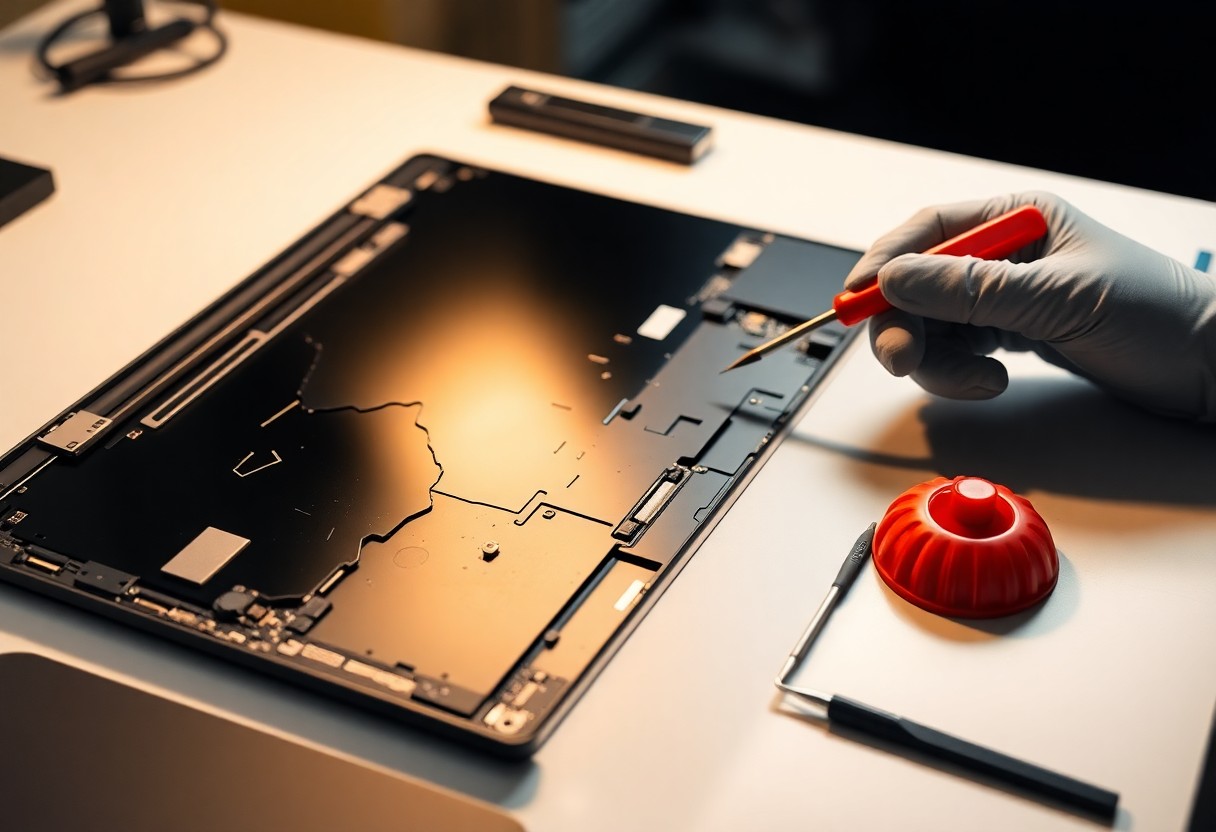

Many laptop screens crack, but you can replace one yourself with care using this step-by-step tutorial that walks you through tools, disassembly, and reassembly. Before starting, power off and disconnect the battery to avoid shock and further damage; wear an anti-static wrist strap and use the correct replacement screen for your model. You will learn how to safely remove the bezel, detach cables, fit the new panel, and test your repair to restore your laptop.
Understanding Cracked Laptop Screens
A cracked screen can mean anything from a small spiderweb on the outer glass to a damaged LCD or digitizer that shows black spots, colored lines, or unresponsive touch. You can often tell the difference: superficial glass cracks leave the display image intact, while an internal panel failure produces distortion across sections or total blackout. Knowing which layer failed guides whether you need a simple glass swap or a full screen replacement.
Common Causes of Cracks
Most breaks occur from impacts like drops, sudden pressure when carrying the laptop, or closing the lid with objects trapped inside-each scenario concentrates force on a small area and fractures the display. Thermal stress during rapid temperature change and rare manufacturing flaws also contribute. You should inspect the failure pattern-edge chips often mean a drop, while central spidering suggests blunt impact.
- Impact/drop from 30-100 cm onto hard surfaces.
- Pressure from heavy items placed on the closed lid.
- Lid-closure with pens or headphones trapped inside.
- Any thermal stress or factory defect that weakens the substrate.
Factors Influencing Repair Success
Repair outcomes depend on whether only the outer glass is damaged, the type of display (TN/IPS/OLED), your model’s parts availability, and your skill level. Replacement panels can range from about $20 for older 14″ TN units to $200+ for high-res IPS/OLED assemblies; some ultrathin designs have bonded glass that complicates DIY swaps. You should verify part compatibility and connector type before starting.
Frame bends, torn ribbon cables, or a cracked backlight lower repairability-cases where the panel’s driver chips are damaged often require full-board service. You will increase success by using an ESD-safe mat, correct torque for bezel screws, and a plastic spudger to avoid further delamination. Models with glued edges often need heat stations or professional separation tools.
- Damage layer (glass vs. LCD/digitizer).
- Screen type and resolution affecting cost and sourcing.
- Parts availability for your exact model and connector.
- Any structural/frame damage that prevents proper seating of a replacement.
Necessary Tools and Materials
You’ll need a compact kit to do this safely: precision screwdrivers, plastic spudgers, a suction cup, tweezers, an ESD wrist strap, heat source (hair dryer or heat gun on low), and a replacement panel that matches your model. Replacement screens typically run $30-$200, so DIY can save $100-$300 versus pro service. Handle shards and cables with care-glass can cut and connectors are fragile.
Essential Tools Required
Bring a Phillips #00 and a Torx T5 (or the bit specified by your laptop), a set of plastic opening tools, a small suction cup, metal tweezers, and a spudger. Use an ESD wrist strap to prevent static damage and a magnetic tray or labeled containers for screws. Applying the wrong driver will strip heads; using a heat gun at low power (or a hair dryer) helps soften adhesive without overheating components.
Recommended Materials for Repairs
Source a replacement panel by exact part number (examples: LP156WF6, B156XTN03.1) and get pre-cut double-sided adhesive strips or B-7000 glue, plus 90%+ isopropyl alcohol and microfiber cloths for cleaning. Gloves protect your hands and a screen protector preserves the new panel. Match the panel model and connector type to avoid incompatibility or no-display issues.
To find the right panel, check the label on the back of the old screen or search your laptop model plus “LCD panel” on iFixit, Amazon, or eBay. Know connector counts like 30-pin or 40-pin eDP, pixel format (Full HD 1920×1080 vs 1366×768), and bezel fit thickness (0.5-2 mm). Using the incorrect panel can cause permanent damage to the cable or backlight; conversely, pre-cut adhesive strips and the correct connector type make reassembly fast and reliable.

Step-by-Step Repair Guide
Proceed through clear, ordered actions so you finish in one session; most laptop screen replacements take 30-90 minutes depending on model. Use the table below for a quick checklist of each phase and the tools or warnings you need at each point, and verify part numbers (e.g., LP156WF6, B156HAN) before ordering a replacement panel.
Step Overview
| Step | Action & Tip |
| 1 – Prep | Power off, unplug, and disconnect the internal battery; wear an ESD strap and clear a 60-80 cm workspace. |
| 2 – Remove bezel | Remove 4-10 screws (Phillips #0/T5), use a suction cup and plastic spudger to pry the bezel to avoid scratching the LCD. |
| 3 – Detach cables | Unplug camera/digitizer and the LVDS/eDP cable; note connector orientation and take reference photos. |
| 4 – Unscrew panel | Remove 2-4 mounting brackets; keep screws labeled by location in a pillbox or magnet tray. |
| 5 – Swap & connect | Match your panel’s model number, align brackets, reconnect eDP/LVDS and camera cables, then test before reassembly. |
| 6 – Reassemble & test | Reinstall bezel and screws, reconnect battery, boot and test for dead pixels, backlight uniformity, and touch response (if applicable). |
Safety Precautions
Before you begin, always power down and remove all power sources, including the internal battery when possible; static can destroy components, so use an ESD wrist strap and work on a grounded surface. Avoid puncturing the lithium battery – a single puncture can cause thermal runaway – and wear safety glasses when prying broken glass to prevent injury from shards.
Detailed Repair Process
Start by removing 6-10 bezel screws and gently prying the bezel with a plastic spudger, then document each cable location with photos. Next, unscrew 2-4 panel mounts, unplug the LVDS/eDP connector (often secured with tape), swap panels, and reconnect everything. You should verify the new panel’s part number and test the display for 5-10 minutes before sealing the laptop.
For additional detail: some laptops (Ultrabooks, MacBooks) use adhesive strips-apply gentle heat at 50-60°C with a heat gun or hair dryer to soften adhesive, but keep heat away from the battery and keyboard. If your screen has a glass digitizer separate from the LCD, you may need specialized suction and a thin guitar-pick tool to separate layers without damaging the LCD; aftermarket panels range from about $25-$150 depending on resolution and manufacturer, so confirm the exact model stamped on the back (e.g., LP156WF6-TLA1) before purchase.
Tips for Preventing Future Damage
Adopt habits that lower the risk of impact and pressure: close your laptop gently, avoid placing heavy items on it, and keep liquids at a distance so you don’t introduce corrosion to internal components. Clean the display with a microfiber cloth and 70% isopropyl alcohol sparingly to protect coatings, and use a padded bag when transporting your device. This helps you avoid costly screen replacement within months.
- Tempered glass screen protector – reduces scratches
- Padded laptop sleeve – cushions drops during transit
- Rigid hardshell case – prevents pressure points on the lid
- Keyboard cover – blocks spills from reaching the screen
Handling and Care Tips
When opening or carrying your laptop, support the display at the bezel and use two hands so you don’t twist the hinge; never lift it by one corner. Keep your workspace clear of heavy objects and store cables to avoid snagging, and clean the screen gently to avoid scratching the anti-glare layer or damaging the digitizer. Any sudden torque or uneven pressure can produce hairline cracks that spread rapidly.
- Open with two hands to spread hinge stress
- Store flat in a padded case when not in use
- Keep liquids away and disconnect power before cleaning
Protective Accessories to Consider
Choose a 0.3 mm tempered glass screen protector for scratch resistance, a padded sleeve for transit, and a polycarbonate hardshell case if you carry the laptop daily; add a keyboard cover to block spills. Match accessories to your laptop’s size and hinge design so you don’t trap pressure points. This combination typically lowers repair frequency and is cost-effective.
When dicking out a screen protector, look for 9H hardness and an oleophobic coating to reduce fingerprints; tempered glass of 0.3-0.33 mm maintains touch accuracy on most touchscreens but won’t stop severe impacts. Expect prices around $10-$25 for protectors, $10-$40 for sleeves, and $20-$60 for quality hardshells; choose materials like polycarbonate or TPU and verify fit for your model to avoid stress on the bezel or hinges.
Alternatives to DIY Repair
If you prefer not to open your laptop, choose between manufacturer mail-in service, a local independent shop, or temporary fixes like using an external monitor or a clear screen protector. Manufacturer or authorized repairs typically run $100-$400, while independent shops often quote $80-$250. You can keep working immediately by connecting an external display with no risk to internal components.
When to Seek Professional Help
If your display has loose glass shards, large areas of dead pixels, persistent flicker, touchscreen failure, water intrusion, or a swollen battery, you should go to a pro. Professionals address internal frame damage, digitizer issues, and potential battery hazards that can be dangerous to handle; using manufacturer service under warranty or AppleCare often results in safer, certified repairs.
Cost Comparison of DIY vs. Professional Repair
You can buy most 13-15″ replacement panels for $30-$150 and a basic repair toolset for $10-$50, keeping total DIY costs typically under $200, while professional repairs usually range from $100-$400 including labor and testing. DIY saves money but raises the chance of misalignment, loose connectors, or voided warranty; pros provide diagnostics and short warranties.
Below is a concise breakdown of typical expenses, turnaround times, and risks so you can weigh savings against potential downsides.
Cost Comparison: DIY vs Professional
| Category | DIY / Professional |
| Costs | DIY: $30-$150 parts + $10-$50 tools; Professional: $100-$400 all-in |
| Turnaround | DIY: 1-3 hours (your time); Professional: same-day to 7 business days |
| Risk | DIY: higher risk of further damage or voided warranty; Professional: lower risk, tested repairs |
| Warranty | DIY: limited/no warranty on the work; Professional: typically 30-90 day warranty |
| Skill Required | DIY: moderate disassembly skills; Professional: none required from you |
Conclusion
With this in mind, you can confidently assess damage, source the correct replacement panel and tools, follow the step-by-step disassembly and reassembly procedures, and take safety measures to protect yourself and your device; work methodically, test the screen before sealing the case, dispose of broken glass safely, and document the process so you can reverse steps if needed-seek professional help only if connectors or board components are damaged beyond your skill level.