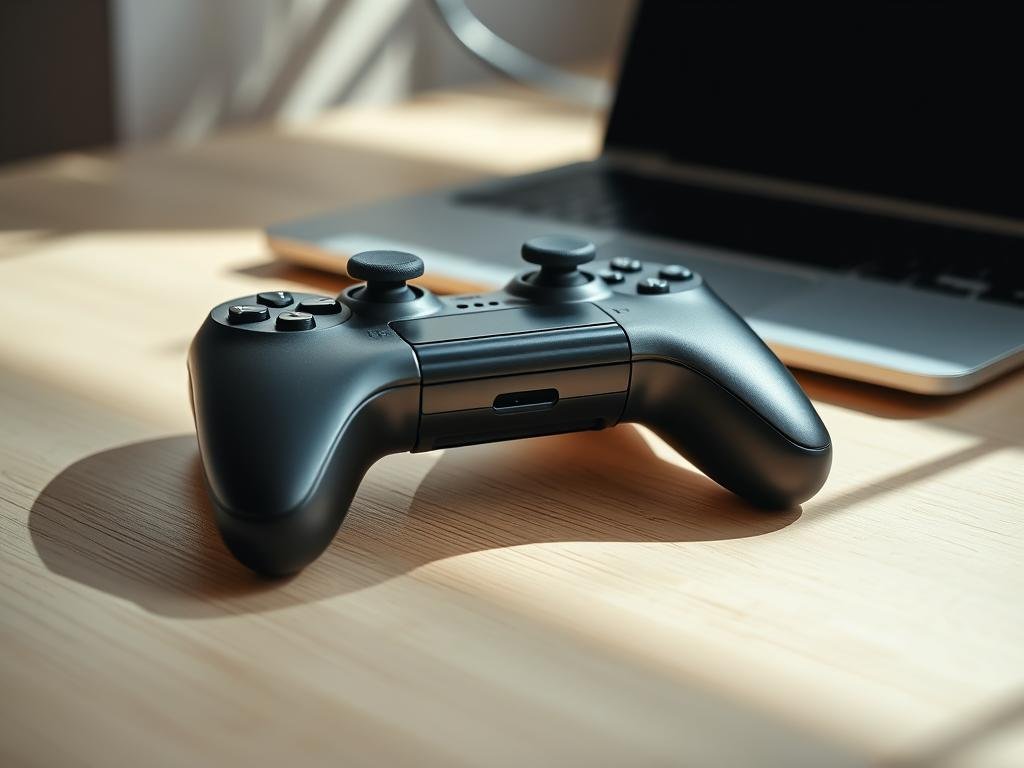

“Technology is best when it brings people together.” – Matt Mullenweg. This quote perfectly captures the essence of modern Bluetooth wireless play. With just a few steps, you can enhance your favorite titles by linking a compatible peripheral to your preferred system.
Today’s devices, from Windows PCs to popular consoles, support seamless Bluetooth connections. This means no more tangled cords—just smooth, responsive gameplay. Whether you prefer racing, action, or strategy, the right Bluetooth setup elevates your experience.
Windows 11 and Xbox integration make Bluetooth pairing effortless. Customization options let you tailor controls to your style. For Apple users, detailed guides ensure quick Bluetooth setup across iPhones, iPads, and Macs.
Why stick to keyboards when precision and comfort await? Unlock wireless freedom and dive into your next adventure.
What You Need Before You Start
Before diving into wireless play, gather the right tools for a smooth experience. A little prep work ensures your setup works flawlessly across devices.
Check Controller Compatibility
Not all input devices work with every system. Verify your model supports your computer’s OS—Windows 11 offers native integration for Xbox peripherals. For older versions, check manufacturer guidelines.
Pro tip: Bluetooth 4.0 or higher ensures stable connections. Need wired options? Identify USB-C or USB-A port requirements beforehand.
Choose the Right Design for Your Needs
Ergonomic designs reduce fatigue during long sessions. Consider hand size and button reach—bulky models may strain smaller hands. Entry-level or premium? Balance budget with features like textured grips or customizable buttons.
Ensure Bluetooth or Adapter Availability
Wireless play requires either built-in Bluetooth or an adapter. Most modern computers support it, but older systems might need a USB dongle. For Apple users, confirm your device runs iOS 16 or later for seamless pairing.
With these basics covered, you’re ready to connect and play.
How to Connect Your Bluetooth Gaming Controller
Wireless play starts with a simple connection process—here’s how to get it right. Whether you’re on Windows or macOS, these steps ensure a stable link between your device and peripheral.
Enable Bluetooth on Your Device
On Windows 11, open the Start menu and type Bluetooth settings. Toggle the switch to “On.” For Mac users, click the Apple logo > System Settings > Bluetooth. Ensure visibility is set to “Discoverable.”
Put Your Controller in Pairing Mode
Locate the sync button—typically near the charging port. Hold it until the LED flashes rapidly. Xbox models show a blinking Guide light; PlayStation uses a white pulse. Pro tip: Charge your device first to avoid interruptions.
Sync the Controller via Bluetooth Menu
Return to your computer’s Bluetooth menu. Select Add Device and choose your model from the list. If it fails, restart both devices and retry. For legacy hardware, a USB adapter may be needed.
Struggling? Update drivers or check our Steam Deck cloud gaming guide for advanced tips. Now you’re ready to play wirelessly!
Wired vs. Wireless Controllers: Pros and Cons
Choosing between wired and wireless input devices depends on your priorities—speed or flexibility. Each has trade-offs that affect your gaming experience. Let’s break down the key differences.
Why Wired Connections Shine
Wired setups deliver zero latency, crucial for competitive play. No batteries mean no mid-session interruptions. A direct USB link ensures consistent input response, ideal for fast-paced titles.
Cable length matters for desk setups. Most models offer 6–10 feet, but extensions are affordable. For more tips, check our gaming accessories guide.
Perks of Wireless Freedom
Wireless peripherals let you move freely, up to 30 feet away. Modern Bluetooth tech reduces lag, though interference can occur near routers or microwaves. Pro tip: Keep devices within 15 feet for stability.
Hybrid options like USB-C charging during play blend both worlds. For battery management, charge after each session or use low-power modes.
| Feature | Wired | Wireless |
|---|---|---|
| Latency | None | Minimal (5–10ms) |
| Battery | Not needed | 10–20 hours |
| Range | Cable length | Up to 30 feet |
“The best input method aligns with your play style—precision or comfort.”
For competitive scenes, wired is king. Casual players may prefer wireless convenience. Explore compatible headsets to complete your setup.
Customizing Your Controller for Optimal Gaming
Personalizing your input device unlocks precision for every title. Tailored settings adapt to your play style, whether you’re dominating FPS matches or exploring RPG worlds. Start with these tweaks to elevate responsiveness and comfort.
Adjusting Button Mapping
Swap default layouts to fit your reflexes. Press Windows + Q to access settings on PC, or use the Xbox Accessories App for consoles. Key changes:
- Genre profiles: Save layouts for racing, fighting, or strategy games.
- Trigger sensitivity: Reduce pull distance for faster shots in shooters.
- Dead zones: Minimize stick drift by adjusting analog thresholds.
Using Xbox Accessories App
Exclusive to Xbox controller models, this tool offers deep customization. Update firmware, adjust haptic feedback, or program macros for complex combos. Xbox Wireless Controller Elite users get extra perks like paddle assignments.
| Feature | Standard | Elite |
|---|---|---|
| Button Remapping | Yes | Yes |
| Trigger Locks | No | 3-stage |
| Profile Slots | 1 | 3+ |
“Custom controls bridge the gap between player and character—master them to own the game.”
For non-Xbox peripherals, Steam Input mimics these features. Share profiles with communities or download presets for popular titles. Your ideal setup is one tweak away.
Conclusion
Unlock the full potential of your favorite titles with the right input device. A proper setup ensures low latency, ergonomic comfort, and seamless transitions between devices.
Windows 11 users gain extra perks, like native integration and automatic driver updates. Keep firmware current to maintain peak performance across all your games.
Experiment with button mapping or sensitivity settings—small tweaks can refine your gaming experience. Cross-platform compatibility means one controller works on PC, console, or mobile.
For lasting responsiveness, store peripherals in a dust-free space and recharge batteries regularly. Ready to play games like never before? Dive in and own every moment.