

Most Android phones that won’t connect to Wi‑Fi while other devices work can be fixed with targeted troubleshooting; in this guide you will follow nine practical steps to diagnose and resolve software, network, and configuration issues. Use backup your data before resets to avoid data loss, and try the simpler fixes first – by the end you should get your phone back online without replacing hardware.
Understanding Wi-Fi Connection Issues
When your Android fails to join a network that other devices use fine, you should focus on device-specific causes: driver/firmware mismatches, corrupted wifi profiles, and Android power-saving settings that disable radios. In practice, checking signal strength (RSSI under -70 dBm is often unreliable), confirming DHCP lease assignment, and ruling out MAC filtering or band steering usually narrows the fault within 10-20 minutes.
Common Factors Affecting Connectivity
Interference, authentication errors, and IP assignment problems are the usual suspects when only your phone struggles. Inspect these areas quickly and systematically:
- Signal strength (RSSI)
- 2.4 GHz vs 5 GHz band issues
- Router firmware bugs
- DHCP conflicts/IP lease
- MAC filtering or access lists
- Saved Wi‑Fi profile corruption
Any problem in those categories can prevent a successful association or IP assignment.
Diagnosing the Problem
Start by isolating variables: confirm other devices maintain throughput, then toggle your phone’s Wi‑Fi and test a hotspot to see if the issue follows the device. Use a simple ping to 8.8.8.8 or check latency-stable connections usually show latency under 50 ms. If your phone gets an IP like 169.254.x.x, the router’s DHCP is failing for that device.
Next, try targeted fixes: forget and re-add the SSID, reboot both router and phone, test with airplane mode toggled, and boot into safe mode to rule out apps. If needed, assign a static IP within the router’s range, verify MAC white/blacklists, and inspect router logs for rejected associations or authentication failures.
How to Restart Your Devices
When temporary glitches hit, a targeted restart can clear stuck network states and free the Wi‑Fi radio on your phone; technicians often try this first because it fixes intermittent issues quickly. If you’ve already toggled Wi‑Fi off and on without success, perform the steps below to fully reboot both ends-your phone’s network stack and the router’s DHCP/ARP tables-before moving to deeper troubleshooting.
Restarting Your Android Phone
You can usually tap Restart from the power menu; if the option is missing, force a reboot by holding Power + Volume Down for 10-20 seconds until the device restarts. That flushes the Wi‑Fi cache and resets the chipset without wiping data. For Android 8+ this often clears DNS or captive‑portal hangups that block authentication.
Power Cycling Your Wi-Fi Router
Unplug the router’s power cable, wait 30-60 seconds, then plug it back in-this clears modem/router memory, DHCP leases, and overloaded packet queues. If you have a separate modem, power it off first, wait 30 seconds, then power the router; do not press the reset button, which would factory‑reset settings.
More details: always power the modem first, wait 30-60 seconds for the upstream link to drop and reestablish, then boot the router; many devices take 1-3 minutes to finish startup and reassign IPs. Power cycling does not change your SSID/password, but hitting the reset pin will. If you must reboot daily, consider firmware updates or replacing hardware older than 3-5 years, as failing electronics often cause recurrent disconnects.
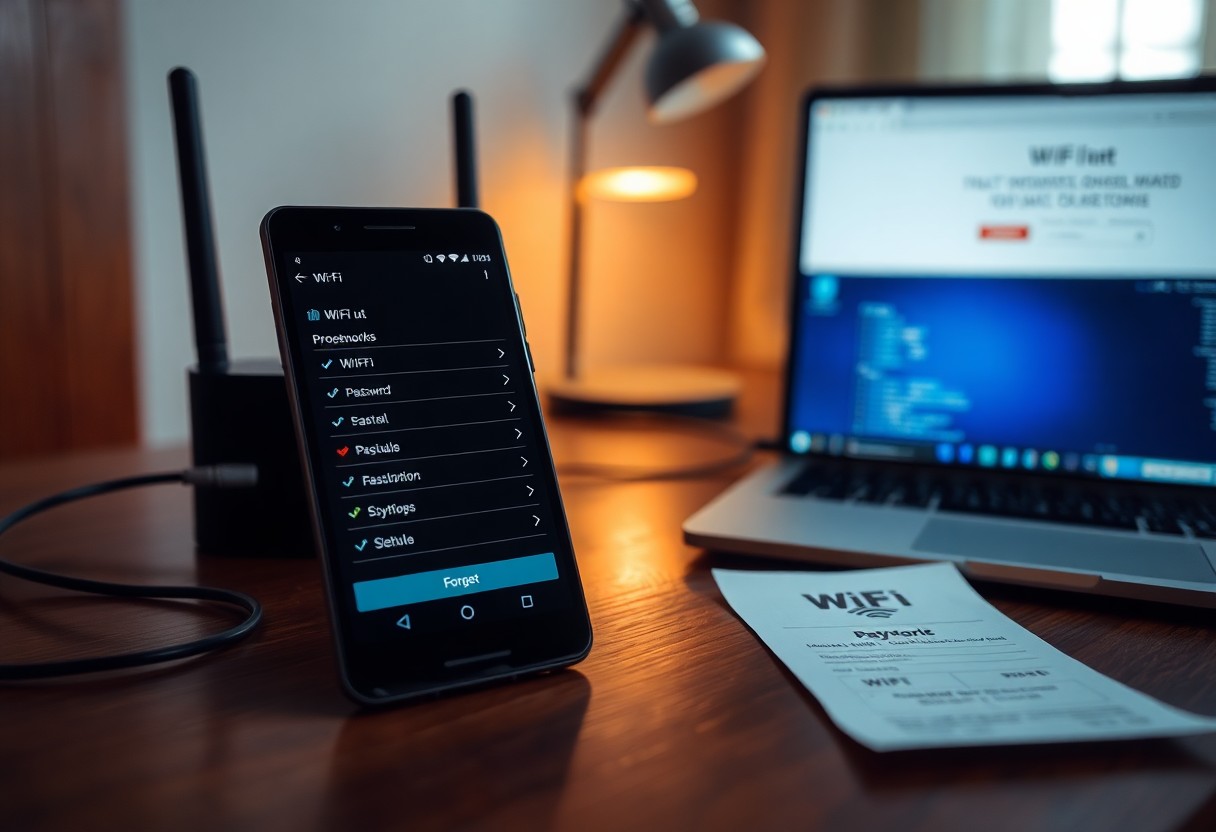
How to Forget and Reconnect to the Wi-Fi Network
When other fixes fail, forgetting the network and reconnecting clears saved passwords, custom IP settings, and old authentication tokens that often block Android devices from joining Wi‑Fi. This removes stale DHCP leases and mismatched security modes (WPA2 vs WPA3) that can cause refusal to connect. After forgetting, reconnecting forces a fresh handshake and new IP assignment, which resolves many intermittent issues without changing router settings.
Forgetting the Network
Open Settings → Network & internet → Wi‑Fi → Saved networks, pick the problematic SSID and tap Forget; on Samsung use Settings → Connections → Wi‑Fi → Saved networks. Doing this removes stored passwords and any custom proxy or static IP entries so the phone starts clean. If you see multiple entries like “HomeWiFi” and “HomeWiFi_5G”, forget both to avoid band confusion.
Re-entering the Wi-Fi Credentials
Select the network from the visible list, toggle Show password while typing, and enter the exact passphrase (case‑sensitive). Use the router’s printed QR code or admin panel to copy the correct password if available. If the network uses WPA3 and your phone’s Android version is old, pick the legacy or transitional mode on the router or choose the 2.4/5 GHz band that’s compatible.
When reconnection still fails, check advanced options before retrying: set Proxy to None, verify DHCP is selected, or try a Static IP using common gateway addresses like 192.168.0.1 or 192.168.1.1 and a free address (e.g., .50). Also confirm the router isn’t enforcing MAC filtering and that there aren’t duplicate SSIDs with different passwords-connecting to the wrong band (5G vs 2.4G) is a frequent culprit.
How to Check for Software Updates
Open Settings → System → System update (or Settings → Software update on Samsung) and tap “Check for updates”; if a patch is available, download it over Wi‑Fi and install while your device is charging and above 50% battery. Updates often include kernel and driver fixes that resolve connectivity issues-Android security patches are usually monthly, and major OTA files range from 100-800 MB, so free up space and back up your data before applying.
Updating Android OS
Go to the update screen, tap “Download and install,” and follow prompts; some builds require a restart that takes 5-15 minutes. For Samsung use Smart Switch or Settings → Software update, for Pixel use Settings → System → System update, and for other OEMs check their support pages. You should install cumulative security patches and Android upgrades because they frequently contain fixes for Wi‑Fi stacks and driver regressions that cause your phone to drop or fail to join networks.
Updating Wi-Fi Driver
Most Wi‑Fi drivers are bundled with OS updates, but manufacturers sometimes push standalone driver or modem firmware via their support apps or the Play Store; for example, Samsung and Pixel deliver firmware through OTAs, while OnePlus users can use Oxygen Updater to grab official releases. Only use official sources to avoid malware, and be aware that flashing unofficial drivers can void warranty and risk bricking the device.
If you need to manually update firmware, first back up your phone and note model/build numbers (Settings → About phone). Then download the exact firmware for your model from the OEM site and use the manufacturer tool-Smart Switch (Samsung), Xperia Companion (Sony), or Fastboot/ADB for Pixel-to sideload or flash: 1) enable Developer Options and USB debugging if required, 2) connect to PC, 3) follow the vendor’s step‑by‑step flash guide, and 4) verify Wi‑Fi after reboot. Do not skip backups and follow official instructions to avoid data loss.
Tips for Adjusting Wi-Fi Settings
Tweak both router and phone settings to eliminate common conflicts: try different channels, disable MAC filtering, or assign a static IP if DHCP times out. Test the router’s firmware and reboot cycles-many Android devices reconnect after an update or power cycle. Knowing small changes like switching bands or reducing connected devices can restore reliable connections quickly.
- 2.4 GHz vs 5 GHz
- WPA2 / WPA3 encryption
- Channel and channel width
- MAC filtering and SSID settings
Changing Wi-Fi Frequency Bands
You can switch your Android to 5 GHz for lower latency and higher throughput-beneficial for 4K streaming or large file transfers-while 2.4 GHz gives better range through walls and around 10-15 meters indoors. If you have a dual-band router, force the phone onto one band in Wi‑Fi settings or create separate SSIDs for each band to test performance; many users see throughput jump from 50 Mbps to 200+ Mbps on 5 GHz in close range.
Adjusting Network Security Settings
You should try changing the router’s WPA mode if your Android won’t join: switch from WPA3 to WPA2 (AES) or use mixed-mode to improve compatibility with older phones. Some Android devices running versions before Android 10 struggle with WPA3, so connecting via WPA2 often resolves authentication failures within minutes.
On the router, set encryption to AES only and avoid TKIP-TKIP caps speeds near 54 Mbps and can block modern clients; for enterprise networks check EAP settings and certificate validity. If you use MAC filtering, temporarily disable it and test; in a case study a user regained access after removing MAC restrictions and updating the router firmware, restoring both 5 GHz and 2.4 GHz connectivity.
How to Reset Network Settings
When network issues persist, resetting network settings wipes saved Wi‑Fi networks, Bluetooth pairings, VPNs, and APN configurations and often restores connectivity by removing corrupt profiles. You’ll lose saved networks and paired devices, so make sure you have Wi‑Fi passwords on hand before proceeding; the process itself is non-destructive to apps and personal files but forces you to reconnect everything manually.
Performing a Network Reset
On Pixel/Android One go to Settings > System > Reset options > Reset Wi‑Fi, mobile & Bluetooth; on Samsung use Settings > General management > Reset > Reset network settings. Tap the option, confirm the prompt, and the phone restarts. This clears Wi‑Fi, mobile data, Bluetooth and VPN entries and is often quicker than toggling individual radios; expect to re-enter all passwords.
Restoring Default Settings
Restoring default network settings can mean resetting APNs or choosing a full factory reset; the former restores carrier APN/DNS entries without deleting apps, while the latter erases all data and apps. If only cellular or MMS is broken, start with APN reset; reserve factory reset for persistent, system‑level failures because factory reset will remove all personal data.
To reset APNs go to Settings > Network & internet > Mobile network > Access Point Names > menu > Reset to default; compare values to carrier specs (e.g., APN “internet” for many carriers). You can also clear the modem/network cache by rebooting into recovery on some models. Back up important data and note Wi‑Fi passwords beforehand to avoid lockouts after either reset.
Final Words
Conclusively, you should methodically apply the nine fixes to determine whether your Android’s problem is software, settings, or hardware: reboot phone and router, update system and apps, toggle Wi-Fi and Bluetooth, forget and rejoin networks, reset network settings, test another network, and pursue repair if unresolved.