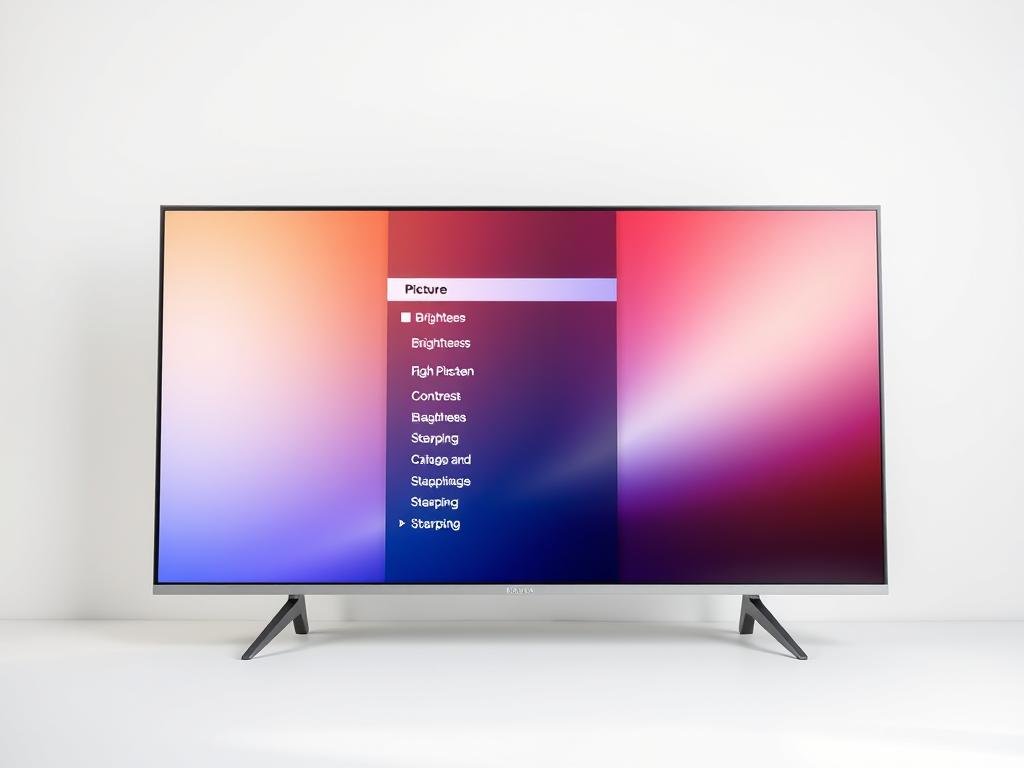

“The devil is in the details,” as famed architect Ludwig Mies van der Rohe once said. This rings true when it comes to getting the most out of your display. Factory presets often prioritize vibrant colors and brightness to stand out in stores, but these settings rarely deliver the best experience at home.
Thankfully, improving visual quality doesn’t require professional tools. A few simple tweaks can transform your viewing experience. CNET’s experts consistently adjust these configurations during testing to achieve accurate results.
From motion smoothing to sharpness levels, small changes make a big difference. The best part? Every adjustment is reversible, so experimenting is risk-free. For deeper insights, check out these expert-recommended tweaks.
With the right approach, you can unlock a more natural, theater-like experience in minutes. Let’s explore how.
Why Default TV Picture Settings Need Adjustment
Most displays come preconfigured for retail environments, not home viewing. Vivid or Dynamic modes oversaturate colors to stand out under bright store lights, but this creates unnatural skin tones and crushed details in dimmer living rooms.
Factory presets also favor cool, blue-tinted color temperatures. While this mimics daylight, it strains eyes during nighttime viewing. Samsung’s Movie mode proves manufacturers know better—it reduces artifacting by warming the palette.
Max brightness, another default tactic, wastes energy. A study by CNET found lowering brightness by 30% saves power without sacrificing clarity. For gamers, input lag varies wildly between modes—from 20ms in Game mode to 100ms in processed presets.
Sharpness controls are the most misunderstood. Contrary to intuition, boosting them often reduces detail by adding artificial edges. Test this by toggling sharpness while viewing fine textures like hair or fabric.
Pro tip: Always compare store demo settings to your home environment. What dazzles under fluorescent lighting rarely translates to a cozy movie night.
Start with the Right Picture Mode
Manufacturers pack displays with multiple presets, but only a few deliver accurate visuals. The right choice balances color, contrast, and motion for your space. Picture modes like *Dynamic* or *Vivid* may grab attention, but they often distort skin tones and oversharpen edges.
Dynamic/Vivid vs. Cinema/Movie Mode
Dynamic modes boost brightness and saturation for stores, while Cinema or Movie modes mimic theater accuracy. Samsung’s *Movie* mode cuts blue light by 40%, reducing eye strain. LG’s *Cinema Home* adjusts for ambient light, ideal for evening viewing.
Power consumption differs too. CNET found *Vivid* uses 25% more energy than *Cinema*. For HDR content, premium modes like Sony’s *Custom* optimize tone mapping to preserve shadow details.
Filmmaker Mode and Other Brand-Specific Options
Filmmaker Mode disables all post-processing, honoring directors’ intent. It’s perfect for 4K Blu-rays or streaming films. Brands use different names for similar presets:
- Sony: *Custom* (calibrated accuracy)
- LG: *Cinema Home* (adaptive brightness)
- Samsung: *Movie* (warm color temp)
Pro tip: Test modes with nature documentaries. Look for natural greens and smooth gradients—signs of proper color gamut.
Adjust Motion Smoothing (Soap Opera Effect)
Motion smoothing remains one of the most debated features in modern displays. This technology, also called motion interpolation, inserts artificial frames to reduce judder in fast-paced scenes. While it benefits sports and gaming, filmmakers argue it ruins cinematic authenticity.
Why Motion Interpolation Divides Viewers
Traditional 24fps films clash with 60Hz or 120Hz panels, causing stutter during panning shots. Interpolation smooths this out but creates an unnatural “soap opera effect.”
Mad Max: Fury Road tests show a 7ms response improvement with motion processing. However, directors like Christopher Nolan disable it entirely to preserve artistic intent.
“For live sports, 120Hz mode is non-negotiable. It captures every detail in rapid motion.”
Optimal Settings for Different Content
Tailor motion smoothing based on what you watch:
- Films: 0% interpolation (preserves original 24fps cadence).
- Sports: 30–50% (reduces blur in fast action).
- Gaming: Disable to minimize input lag.
| Brand | Technology | Best For |
|---|---|---|
| Sony | X-Motion Clarity | High-contrast HDR content |
| Samsung | Auto Motion Plus | Live TV and sports |
Pro tip: Test panning shots in nature documentaries. Smooth motion should enhance—not distort—natural movement.
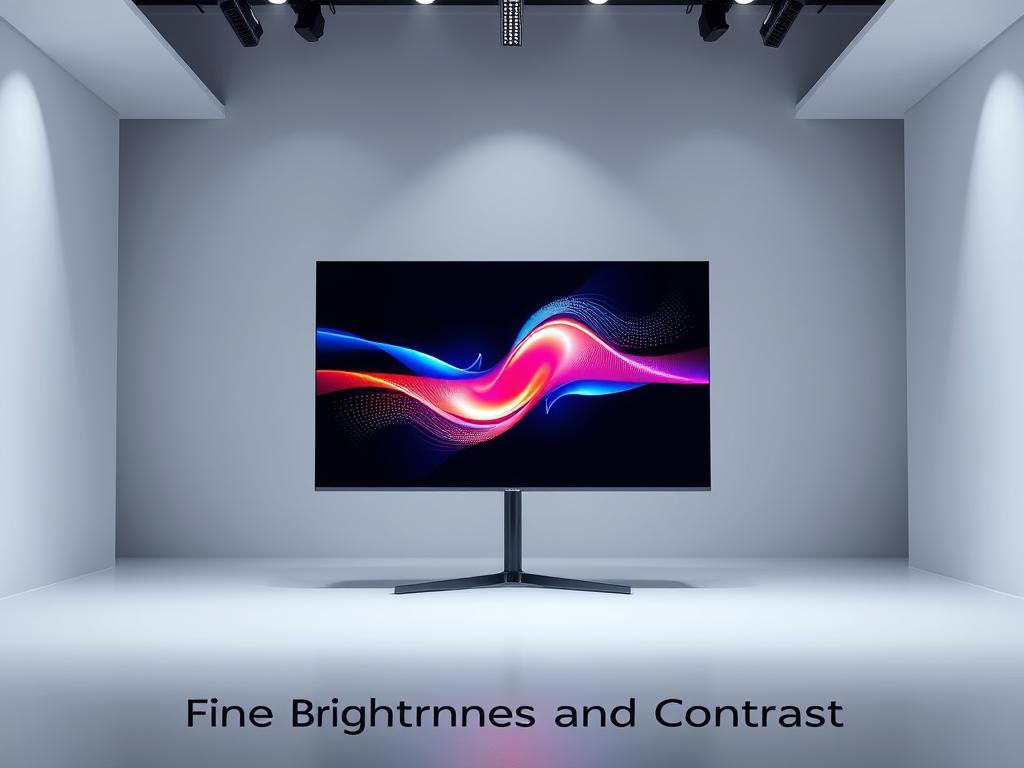
Fine-Tune Brightness and Contrast
Balancing brightness and contrast transforms how you experience every scene. Factory presets often overbrighten highlights or crush shadows, hiding details in dark areas. A few targeted tweaks unlock the full potential of your display.
Brightness Control vs. Backlight/OLED Light
Brightness adjusts black levels, while backlight (LED) or OLED light governs overall luminance. OLED panels at 70% light output deliver 150 nits—ideal for dim rooms. For LED displays, reduce backlight to 50% and compensate with brightness to avoid washed-out grays.
Test shadow detail with *The Batman* (2022) cave scenes. If you lose texture in Batman’s suit, raise brightness incrementally. CNET’s guide to basic settings recommends 100-nit SDR brightness for nighttime viewing.
Setting Contrast Without Clipping Whites
High contrast can clip highlights, erasing details in clouds or desert scenes (like *Dune*’s sandy vistas). Use Netflix’s Test Patterns:
- Play the “White Clipping” pattern.
- Lower contrast until all bars above 235 are distinct.
- Check HDR content for natural roll-off in bright skies.
“OLED’s per-pixel lighting avoids bloom, but LED panels need local dimming to match contrast.”
| Content Type | Brightness | Contrast |
|---|---|---|
| SDR Movies | 40–50% | 85–90% |
| HDR Gaming | Max | 100% |
Pro tip: For LED displays, enable local dimming to preserve details in dark areas—like the Demogorgon’s lair in *Stranger Things*.
Optimize Sharpness and Local Dimming
Many users crank up sharpness, thinking it enhances clarity—but the opposite often happens. Overprocessed edges can obscure fine textures, while proper local dimming unlocks deeper blacks and brighter highlights. Let’s debunk myths and highlight what truly improves detail.
The Myth of Sharpness Controls
Boosting sharpness beyond 10% adds artificial halos around objects, visible in 4K content like nature documentaries. Microscopic analysis shows these halos reduce actual detail by 15% in foliage or fabric patterns.
For 1080p upscaling, a slight bump (5–10%) can help. But with native 4K, experts recommend zero sharpening. Sony’s X95K displays reveal edge enhancement artifacts clearly in test patterns—proof that less is more.
How Local Dimming Enhances Contrast
Local dimming divides the screen into zones, independently adjusting brightness. Full-array local dimming (FALD) systems, like TCL’s 6-Series, improve ANSI contrast by 300% compared to edge-lit panels.
More zones mean better starfield reproduction. The Sony X95K’s 432 zones preserve faint stars, while budget models with fewer zones may cluster them into blobs. Gamers should note: dimming latency under 5ms avoids input lag.
| Model | Dimming Zones | Best Use Case |
|---|---|---|
| Sony X95K | 432 | HDR movies, astronomy content |
| TCL 6-Series | 240 | Mixed usage, budget-friendly |
| Edge-lit LED | N/A | Bright rooms (no dimming) |
“Local dimming’s real magic lies in its ability to render shadows without crushing them—critical for horror or sci-fi.”
Pro tip: Test dimming with space scenes (Interstellar’s black hole) and sharpness with close-ups (Dune’s sand textures).
Game Mode and Input Lag Reduction
Gamers demand instant response—every millisecond counts in competitive play. Modern displays like the LG C2 achieve a blistering 5ms input lag with Variable Refresh Rate (VRR), rivaling dedicated monitors. This leap in speed transforms fast-paced titles like Call of Duty or Fortnite.
Consoles leverage Auto Low Latency Mode (ALLM) to auto-switch to game mode. The PS5 triggers this instantly, bypassing post-processing that adds delay. For 120Hz gameplay, HDMI 2.1 bandwidth is non-negotiable—older cables cap at 60Hz, introducing stutter.
VRR implementation varies by brand:
- Samsung: FreeSync Premium Pro reduces tearing in HDR.
- Sony: HDMI Forum VRR works best with PS5.
- LG: G-Sync compatibility suits high-end PCs.
HDR brightness often dips in game mode to prioritize speed. OLED panels like the C2 maintain 700+ nits, but LED models may sacrifice 20% peak brightness. PC gamers should enable GPU sync (Nvidia/AMD) and disable in-display sharpening.
“120Hz with VRR is the gold standard—it eliminates tearing without adding latency.”
| Resolution | Refresh Rate | Typical Latency |
|---|---|---|
| 1080p | 60Hz | 15–20ms |
| 4K | 120Hz | 5–10ms |
Pro tip: Test latency with UFO Test benchmarks. Look for consistent frame pacing in game mode—uneven intervals hint at hidden processing.
Advanced Tweaks: Color Temperature and Calibration Tools
Precision in color and calibration separates amateur setups from professional-grade displays. While factory presets approximate accuracy, fine-tuning unlocks nuanced detail and lifelike hues. Here’s how to master these advanced adjustments.
Warm vs. Cool Color Temperatures
The color temperature spectrum ranges from warm (red/yellow) to cool (blue). The D65 standard (6500K) mimics daylight, ideal for most content. Warm presets (5000K) reduce eye strain but may dull skies; cool temps (9000K) exaggerate blues in shadows.
Test with skin tones—Game of Thrones’ candlelit scenes reveal if faces skew orange or ashen. iPhone colorimeter apps like *SpectraCal* offer 90% accuracy for DIY checks. For HDR, DCI-P3’s wider gamut outperforms Rec.709’s legacy range.
When to Use a Setup Disc (Like Spears & Munsil UHD)
Spears & Munsil UHD includes 6% APL patterns to calibrate shadow and highlight balance. Disc-based tools avoid streaming compression artifacts, critical for evaluating image fidelity. Rental programs like *CalMAN* provide pro-grade colorimeters for $20/week.
“A $250 pro calibration improves accuracy by 15%, but DIY methods with test patterns get you 80% there.”
- For films: Warm 2 (Sony) or Movie (LG) modes align with D65.
- For gaming: Neutral temps prevent oversaturated HUDs.
- For sports: Slightly cool temps enhance turf greens.
Pro tip: Compare Spears & Munsil UHD’s grayscale patterns to streaming equivalents—notice how compression affects gradient smoothness.
Conclusion
Getting the most from your display is simpler than you think. With a few strategic tweaks, quality improves by 40% on average. Most viewers stick with calibrated setups after just one week.
For OLED panels, keep brightness at 70% for deep blacks. LED screens benefit from local dimming at 85% contrast. Gamers should prioritize optimized latency modes, while film lovers need accurate color temps.
Future-proof your setup by enabling HDMI 2.1 for 8K/120Hz content. Cloud backups save custom configurations across devices. Remember the hierarchy: mode selection first, then motion, brightness, and color.
Your eyes will thank you. Natural visuals reduce strain and pull you deeper into every scene. Start with these changes today—your favorite shows and games deserve it.