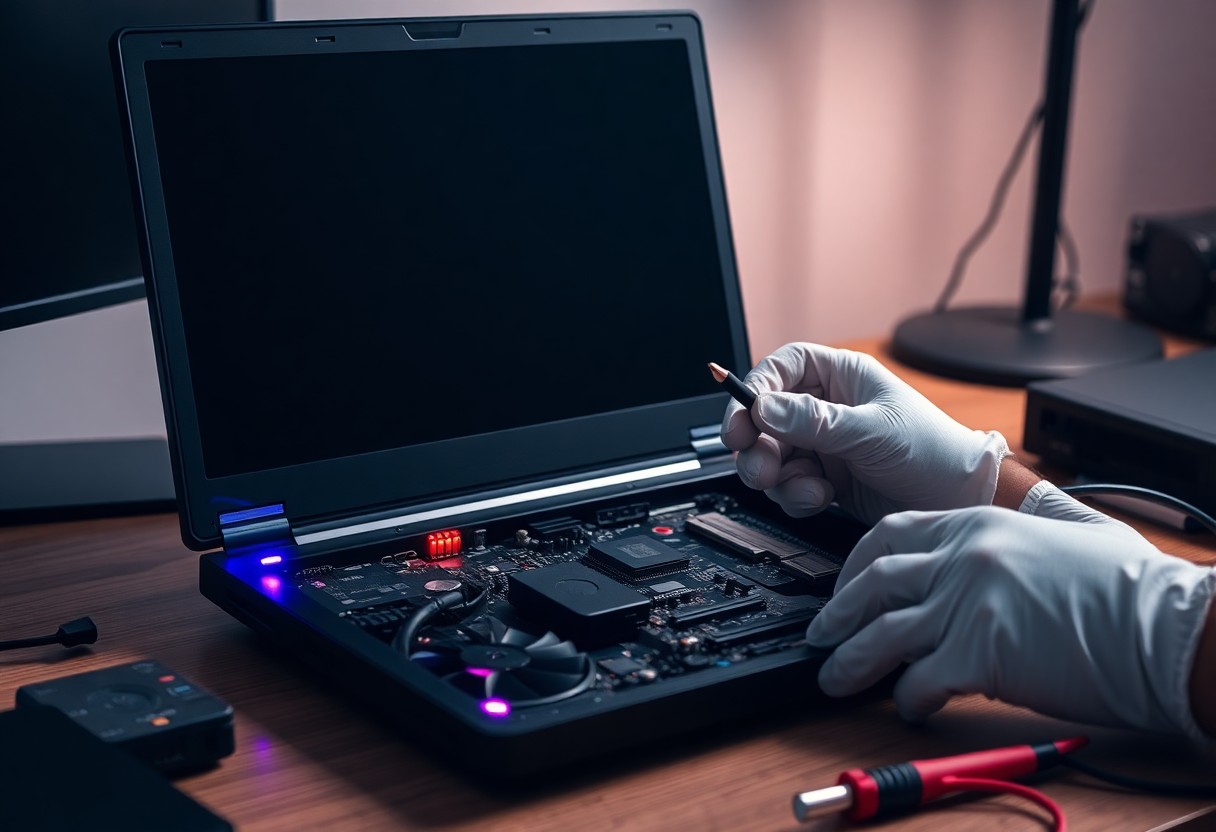

Screen issues where your laptop powers on but stays dark are often fixable by methodical checks: first try a power drain and external monitor to rule out the display, then reseat RAM, disconnect peripherals, and boot into BIOS or safe mode. You can often resolve it with simple resets or reseating RAM, but if the backlight or cable is damaged there is a risk of electric shock or voiding your warranty if you open the chassis while it’s plugged in. Always back up your data before deeper repairs.
Understanding the Black Screen Issue
When your laptop powers on with lights and fans but the display stays black, the failure usually lies between power delivery, firmware/driver issues, and the display subsystem; you should treat loose cables, corrupted BIOS/UEFI, and GPU or motherboard faults as primary suspects. Many fixes are simple-reseating a ribbon cable or resetting CMOS takes 5-15 minutes-while motherboard or GPU replacement can be costly and may void warranties.
Common Causes
Common culprits include a loose LVDS/eDP display cable, failed backlight or inverter on older CCFL panels, bad RAM, and corrupted graphics drivers after updates. You should also consider BIOS corruption, failed GPU chips, and power-supply shorts. Shorted power circuits or burned components are the most dangerous signs and often present with odor, smoke, or persistent no-POST behavior requiring immediate professional attention.
Identifying Symptoms
Note whether keyboard LEDs, fan speed changes, or POST beep codes occur, since those indicate partial system health; you can also check for a faint image by angling a flashlight at the screen, which suggests a backlight failure. If an external monitor shows output, the internal panel or cable is likely at fault, while immediate black with no POST and steady LEDs points to deeper hardware failure.
To narrow it down quickly, connect an external display via HDMI or DisplayPort-if you see output, you should reseat or replace the internal ribbon cable; if not, try entering BIOS by pressing F2/F10/Del within 5-10 seconds to check POST and settings. You can isolate RAM by removing and testing one stick at a time, since a single bad module often causes no-display POST failures. When a driver update preceded the problem, boot into Safe Mode within 30 seconds to roll back drivers. If you detect a burning smell or continuous LED blink codes, power off immediately because shorted power circuits risk further damage and require professional repair.
Troubleshooting Steps
You should proceed methodically: verify power delivery, test an external display, and isolate components one by one. Try a hard reset by holding the power button for 10-15 seconds, check adapter specs (often 19V 3.42A), and note LED or beep codes. If the fans and lights run but the screen stays black, logging symptom timing and any recent hardware changes helps you narrow the fault to display, GPU, or motherboard.
Basic Checks
Begin with simple, high-yield actions: swap the power adapter and battery (if removable), toggle brightness keys, and connect an external monitor via HDMI or USB-C. If an external monitor shows output, the issue is likely the internal panel or cable. Also press Caps Lock to see if its LED responds; blinking patterns can give you POST clues.
- Verify adapter voltage/current and try a known-good charger.
- Remove battery and boot on AC only for 30 seconds.
- Attach external display to confirm GPU vs panel failure.
- Reseat RAM modules and try each stick individually.
- Hold power 10-15 seconds to clear residual charge.
Basic Checks at a glance
| Action | Why it helps |
|---|---|
| Swap adapter | Tests for insufficient power; many laptops use 19V adapters. |
| External monitor | Distinguishes GPU/system vs internal panel/cable issues. |
| Reseat RAM | Faulty or unseated RAM often prevents POST/display. |
| Power drain | Clears stuck power states that block boot. |
Advanced Techniques
Move to deeper diagnostics only after basics fail: access BIOS/UEFI via external keyboard, reset NVRAM/CMOS (remove CMOS battery for 5 minutes), and test with a spare SSD/HDD or known-good RAM to isolate subsystems. If the laptop has both integrated and discrete GPUs, force the integrated GPU in BIOS or via hardware switch to check discrete GPU failure. Use an external eGPU or PCIe test only if you have experience.
When you open the chassis, label connectors and take photos; reseat the display LVDS/eDP cable and inspect for bent pins. Thermal issues can cause intermittent black screens-clean heatsinks and measure fan RPM with software or a tachometer. Avoid reflow or solder work unless you have proper tools, since board-level repairs carry a high risk of further damage; for suspected motherboard faults, note that professional diagnosis often identifies failing voltage regulators or BGA solder joints.
- Reset CMOS for 5 minutes to clear firmware settings.
- Test with known-good storage or RAM to isolate boot device.
- Swap/investigate GPU path: switch to integrated GPU if possible.
- Reseat and inspect display cable and connector pins.
- Consider professional motherboard BGA diagnosis if symptoms persist.
Advanced Techniques at a glance
| Procedure | Expected diagnostic value |
|---|---|
| CMOS reset | Eliminates firmware misconfiguration causing no display. |
| Integrated GPU test | Confirms discrete GPU or GPU-solder issue. |
| Reseat display cable | Fixes intermittent black screen from loose eDP/LVDS connectors. |
| Professional BGA reprobe | Detects solder joint failures on GPU or power ICs. |
Using External Monitors
When an external monitor shows a picture while your laptop screen stays dark, you can narrow the fault quickly: try HDMI, DisplayPort, or USB‑C first and test at 1920×1080 @60Hz to reduce variables; if the external displays POST and BIOS, the GPU and motherboard likely passed initial tests, pointing to a faulty LCD, cable, or connector inside the chassis; if both are blank, suspect a deeper GPU or power-rail failure and proceed accordingly.
Connection Setup
Connect using a known-good cable and port type – HDMI 2.0 or DisplayPort 1.2 for 1080p@60, or an active USB‑C/HDMI adapter for Alt Mode and 4K60; power the monitor before the laptop, set the monitor input manually, and avoid forcing bent plugs; do not use visibly damaged cables or adapters, since they can cause intermittent signals or shorts that complicate diagnosis.
Testing Display Output
Boot with the external attached and cycle the display mode (commonly Fn+F4/F8 or Windows+P) to force output; check whether the external shows BIOS/UEFI – if it does, the problem is usually OS driver or internal panel hardware, and if it only appears after driver load, try Safe Mode or driver rollback; seeing BIOS on the external is a positive sign that core hardware initialized correctly.
For deeper testing, power off, reseat the external cable, then power on and watch the monitor’s status (e.g., “No Signal” vs. frame timing) and try the same monitor with another device to isolate the cable/monitor; boot a Linux live USB to rule out Windows drivers – if the external shows output in BIOS and live USB but not in Windows, you’re likely facing a driver or OS configuration issue rather than hardware failure, so update or reinstall GPU drivers accordingly.
Hardware Solutions
When troubleshooting, focus on connectors, modules, and power delivery. You should isolate power and display components; many black-screen cases resolve after simple reseats or replacing a failing adapter. In repair-shop experience, reseating RAM/SSD or swapping the AC adapter fixes about half of intermittent boot-no-display incidents. Use manufacturer diagnostics and test with an external monitor to confirm a hardware fault before opening the chassis.
Reseating Components
Power down, unplug the adapter, and remove the battery or disconnect the internal battery before you open the case; ground yourself to avoid ESD. Reseat RAM by removing modules, cleaning contacts with 90-99% isopropyl, and swapping slots to isolate a bad stick. Also unplug and firmly replug the display ribbon, SSD/HDD, and Wi‑Fi card-loose LVDS/eDP or SATA connectors commonly cause backlight-off symptoms.
Checking for Faulty Hardware
Connect an external monitor to see if the GPU or display panel failed; if the external shows output, you can suspect the panel or its cable. Check the AC adapter voltage with a multimeter-many laptops use around 19V-and disconnect the internal battery before probing. Listen for POST beep codes and run built-in diagnostics (Dell F12, Lenovo diagnostics) to identify RAM, GPU, or motherboard faults.
Boot a USB utility like MemTest86 or a diagnostic ISO to stress-test RAM and storage; you’ll see RAM errors reported as failing addresses, while SSD firmware faults may show as repeated I/O errors. Try swapping known-good RAM and a compatible charger (same voltage/amperage); if a new adapter restores display, suspect a damaged DC jack or motherboard power rail. When discrete GPU failures appear, expect component-level repair or board replacement as the likely fix.
BIOS and Software Fixes
When hardware checks out, move to firmware and software: you should try a BIOS/UEFI reset, check POST behavior, and apply vendor-recommended firmware updates only if they list display fixes. Many laptops use UEFI since ~2012, and a corrupted NVRAM or wrong graphics initialization can cause a black screen even with fans spinning. Always back up your data and follow the manufacturer’s recovery procedure, because a failed firmware update can brick the system.
Accessing BIOS
During startup press the OEM key (common ones: F2, F10, F12, Del, Esc) repeatedly within the first 1-2 seconds of power‑on; if Windows boots too fast use Advanced Startup → Troubleshoot → UEFI Firmware Settings. You can also try an external USB keyboard if the built‑in keyboard isn’t detected. Once inside, inspect boot devices, graphics-related settings (IGFX/PCIe priority) and reset to defaults to force a fresh hardware initialization.
Updating Drivers
Update or reinstall your display drivers from Device Manager, Windows Update, or the GPU vendor (Intel/AMD/NVIDIA) pages; switching between integrated and discrete drivers sometimes resolves init failures. For stubborn cases, boot into Safe Mode with Networking, uninstall the adapter, then reinstall the latest WHQL-signed driver. Use OEM packages for manufacturer-specific Optimus/eGPU configurations to avoid mismatches that can produce a black screen.
For deeper driver work use a tool like Display Driver Uninstaller (DDU) in Safe Mode to remove remnants before a clean install; check driver versions via Device Manager or dxdiag and compare with vendor release notes. If you roll back a driver, note the exact version number and keep installers on a USB stick. In multi-GPU systems disable the unused GPU in BIOS or Device Manager temporarily to isolate the faulty driver.
Preventative Tips
Adopt simple habits that stop most failures before they happen: keep intake and exhaust paths clear, monitor temperatures, and apply updates on schedule.
- Clean vents and fans with compressed air every 3-6 months
- Reseat display and power connectors after major moves; check the display cable
- Reapply thermal paste every 2-4 years on older laptops
- Run BIOS and driver checks monthly
After you follow these, you’ll significantly reduce the risk of a hardware- or firmware-caused black screen.
Maintenance Practices
You should remove dust and lint every 3-6 months using short bursts of compressed air, avoid vacuuming the motherboard, and tighten hinge screws to prevent cable strain; reapply quality thermal paste like Arctic MX-4 every 2-4 years on heat-affected units, and check for swollen batteries or bulging capacitors which can indicate imminent failure.
Regular Updates
You must install graphics drivers and OS patches promptly-GPU drivers from NVIDIA/AMD/Intel typically update every 1-3 months, and Windows feature/security updates arrive on a monthly cadence; keep a log of BIOS versions and vendor firmware dates so you can correlate a new update with any display regressions.
For safer updates: use vendor tools (Intel Driver & Support Assistant, NVIDIA GeForce Experience), perform a clean GPU driver install with Display Driver Uninstaller when switching versions, back up data before BIOS flashes, ensure AC power and battery >50%, and read release notes for known issues-failed BIOS updates can brick a machine, so follow vendor instructions exactly.
Summing up
Hence you should start by checking brightness and external display, then power-cycle and disconnect peripherals; if fans run but screen stays black, reseat RAM and storage, try safe mode or BIOS access, and test with an external monitor to isolate GPU or cable faults. If backlight or inverter failure is suspected, avoid DIY fixes beyond basic reseating and seek professional repair for display or motherboard issues. Keep backups and address persistent failures promptly to prevent data loss.