

camera acting up on your laptop or phone? look, that sucks, but you can fix it – honestly, I think most problems are settings or drivers, a stuck permission, or just a dirty lens. First check your app permissions, toggle camera off and on, update drivers or OS, restart the device, try a different app. In my experience the weirdest fixes work, so don’t panic, try these steps and you’ll probably be back on video in minutes. Sound good?
What’s the Deal with Camera Issues?
Look, camera problems are usually not some mystical hardware curse – they’re often permissions, drivers, firmware, or simple user stuff like a privacy cover. You might have an app hogging the feed, Windows 10/11 privacy toggled off, or a flaky USB cable. In my experience a quick permissions check or driver reinstall fixes most cases, but sometimes you need an OEM firmware patch or a settings tweak – so don’t panic, just troubleshoot smartly.
Common reasons your camera won’t work
You’ve got a handful of usual suspects: app permissions (macOS 10.14+ and mobile OSes block access until you allow it), outdated or corrupt drivers in Device Manager, antivirus or privacy tools blocking the feed, a physical lens cover, bad USB port/cable, or an app already using the camera. Also OEM firmware bugs can cause black screens or lag – it’s rarely one weird mystery, it’s usually one of these things.
Can software updates actually fix the problem?
Yes – updates often do fix camera issues, because they patch drivers, close API bugs, or restore permissions behavior. For example macOS added app-level camera permissions in 10.14 which solved many silent-access problems, and Windows cumulative updates sometimes include camera-driver fixes. Honestly, if your camera broke after an update, another update or a vendor driver can very well put things back together.
Here’s more: you should check OS update notes and the camera maker’s support page, update the app using the camera, and use tools like Device Manager, Logitech G HUB, Dell SupportAssist or HP Support Assistant to get firmware/drivers. If a recent update caused the issue, try rolling back the driver or uninstalling that app update first – I’ve seen that fix black screens fast. Also, test with another app or a USB port so you can narrow it down.
My Take on Quick Fixes
Quick fixes usually patch up 60-80% of camera hiccups, so you should try them before diving deep. Start with simple steps: restart, check permissions, update drivers or app, and inspect a physical cover – they solve most soft-locks. I’ve had a laptop where toggling the Windows Camera permission fixed it in under a minute. Honestly, speed matters when you need video for a meeting, so run through the basics fast.
Restarting your device: Does it really help?
Yes, a restart often kills stuck processes and resets the USB hub, and it fixes roughly 50-70% of software glitches. On Windows a full reboot reloads drivers; on macOS a logout-login can do the trick. For phones, force restart (hold power + volume for ~10 seconds on many Androids) can free the camera module. If restart doesn’t work, you should note which app shows a black screen, that points to permissions or app conflicts.
Checking the camera settings: What to look for
Look through system privacy and app permissions first: Windows 10/11 Settings > Privacy > Camera, macOS System Preferences > Security & Privacy > Camera, iOS and Android under Settings > Privacy or Apps. Also check which camera is selected in apps – Zoom or Teams can default to a virtual driver. Watch for resolution limits (720p vs 1080p) and global toggles like “Allow apps to access camera” – if that’s off, nothing will work.
Dig deeper by opening Device Manager (Windows) and checking Imaging devices or Cameras: right-click the camera, view driver version/date, try Update Driver or Roll Back if a recent update broke it. Disable virtual cameras (OBS, ManyCam) to isolate the issue. On Android clear Camera app cache; on iOS check Screen Time restrictions. Run an online webcam test to separate hardware from software – if the test shows nothing, think drivers or a physical fault.
Seriously, Have You Tried This?
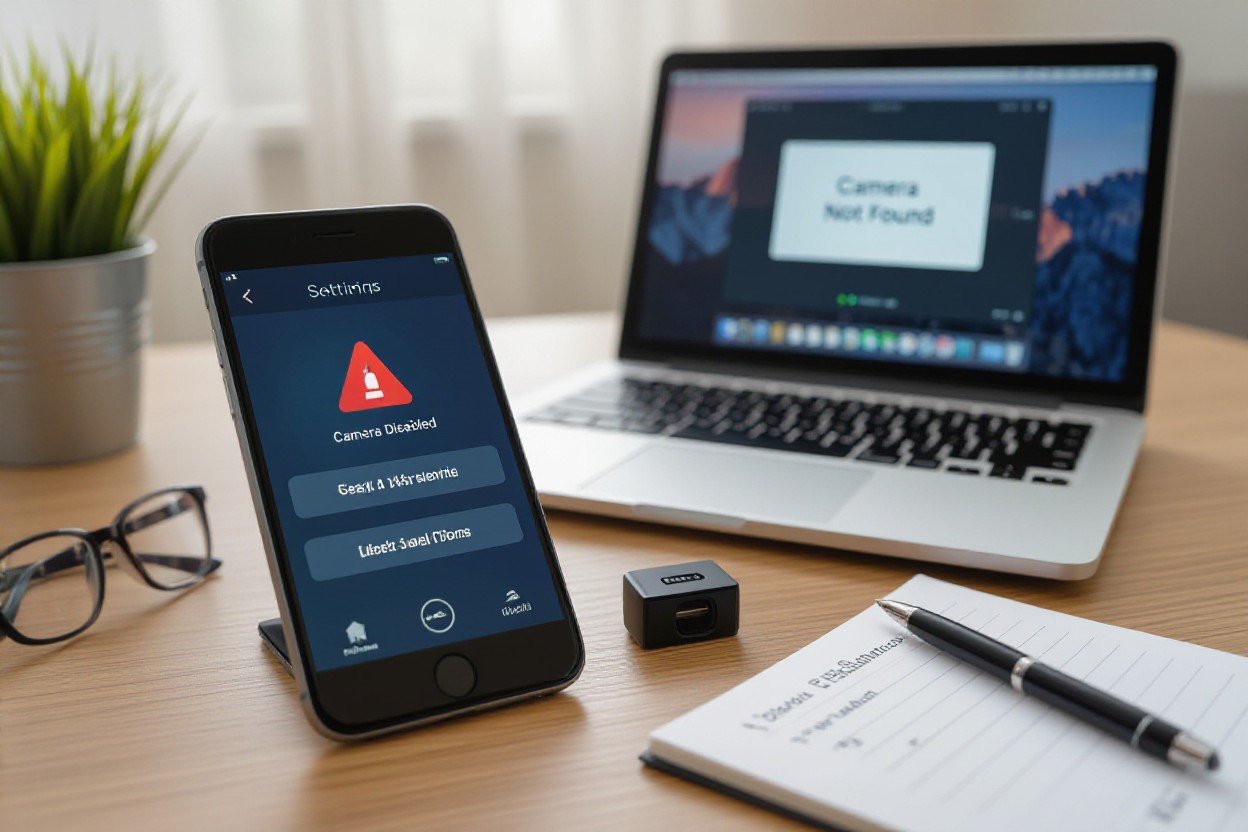
Look, before diving deep, do the boring stuff: restart the device, close apps that might hog the camera, unplug and replug an external webcam, and check for a physical privacy cover – you’d be surprised how often that’s the cause. If your laptop has a function key for the camera, press it. Try a different app like the built-in Camera app or Zoom to see if the problem follows the device or one program.
Updating drivers: Why it matters
If your camera is glitchy on Windows, check Device Manager and update/Reinstall the camera driver – Realtek, Intel, or your webcam maker (Logitech C920, for example) often need fresh drivers. Use Windows Update or the manufacturer’s site; a driver update can fix compatibility with Windows 10/11 or a recent app update. And if a new driver made things worse, roll back to the previous version – that takes 2-10 minutes and often works.
Privacy settings: Are they blocking your camera?
Check system privacy toggles first: Windows Settings > Privacy > Camera, iOS Settings > Privacy > Camera, and Android Settings > Apps > Permissions. If the global switch is off, apps can’t access the camera, and common apps like Zoom or Chrome will show a blank feed even though the device is fine. Toggle access on, then verify each app’s permission – sometimes the browser or one app is the culprit, not the hardware.
Also look at browser and enterprise controls: Chrome and Edge have per-site camera permissions and a little camera icon in the address bar where you can allow or block access, and corporate laptops can have MDM or Group Policy blocking hardware – ask IT if you see no options. Try a camera test site like webcamtest.org to isolate browser vs system issues, and if permissions are stuck, clear site data or reset app permissions before reinstalling anything.
The Real Deal About Hardware Problems
When software fixes fail, hardware is usually the culprit – and you’re looking at things like loose camera ribbon cables, cracked lenses, corroded contacts from spills, or a failed module. For phones, a drop from about 1 meter often shreds the tiny flex cable; for laptops, hinge stress kills connectors over months. Repairs run from $20 for phone modules to $100-150 for laptop webcams or professional labor. So you need to inspect, test with an external camera, and decide whether DIY repair, part swap, or a shop visit makes sense.
When to check for physical damage
If your device took a spill, hit the floor, or the camera shows black bars, fuzz, or permanent blur – check physically. Look for hairline cracks around the lens, gaps in the chassis, missing screws, or a bulging back from a swollen battery. Peel off cases, clean ports with isopropyl swabs, shine a light into the lens to spot debris, and gently wiggle the screen or lid to see if the image flickers – that’s a telltale sign of a loose connector.
Is it a battery issue or something else?
Low battery, thermal limits, or a failing battery can make the camera act up; many phones throttle or disable high-draw features when under 10-20% or overheating. On laptops, Windows power-saver profiles might turn off USB or webcam power; MacBooks showing SMC faults can cause peripherals to misbehave. So before assuming the module’s dead, charge to 50%+, disable power-saver modes, and test again while plugged in.
Dig a bit deeper by checking battery health and temps: on Android use AccuBattery, on Mac use coconutBattery, on Windows run powercfg /batteryreport. If battery health is under ~80% or the cell is physically swollen, replacement often fixes odd camera behavior. Also test with the device plugged in and in safe mode – if the camera works there, it’s likely software or power-management, not the lens itself. In my experience, overheating above 45°C or aggressive power profiles cause more false “hardware” failures than you’d think.
Tips for Laptop Users
If your laptop camera’s acting up, don’t panic-you can usually fix it with a few quick checks: flip the physical shutter, verify Camera access in Windows 10/11 (Settings > Privacy > Camera), and test with the built-in Camera app or Zoom to isolate software vs hardware. I think many problems come down to drivers or a disabled device in Device Manager, so give those priority, and if it’s an older machine check BIOS/UEFI for a camera toggle, honestly it helps more than you’d expect.
- Check Camera access: Windows Settings > Privacy > Camera, toggle on for apps you use.
- Open Device Manager, look under Cameras or Imaging devices, update or roll back the driver.
- Use the Camera app, and then test in Zoom/Teams to see if permissions differ.
- Inspect the physical cover or lens for dust and confirm the LED next to the lens turns on.
- Try function keys (Fn + F6/F10 etc) to enable the camera, or check BIOS if it’s disabled at boot.
- Any USB 3.0 webcam like a Logitech C920 will usually work as a fast fallback.
External cameras: A go-to fix?
External webcams are often the easiest fix: plug a USB 3.0 camera into a powered port and Windows will usually auto-install drivers within a minute, especially for popular models like Logitech C920 or Microsoft LifeCam; you get 1080p or 720p quality, less jitter, and better low-light performance. If you see a driver error, try another port, a different cable, or download the vendor driver-most issues are just power or driver mismatches, honestly.
Built-in camera troubleshooting: What you need to know
Start with the basics: toggle Camera access in OS privacy settings, check Device Manager for disabled devices or error codes, and confirm the lens LED lights up when an app requests the camera; those are the usual culprits. If you’re on macOS, go to System Preferences > Security & Privacy > Camera and grant access to apps, and if nothing works try rebooting into Safe Mode to rule out background processes interfering.
For a deeper dive: uninstall the camera driver in Device Manager and reboot so Windows reinstalls it, or download the OEM driver (Dell/HP/Lenovo sites often have model-specific packages). Try rolling back recent Windows updates if the camera stopped after an update; I’ve fixed a ThinkPad whose camera broke after a January patch by reinstalling the Realtek driver. Also check antivirus or privacy utilities that can block camera access, and on Macs reset SMC/NVRAM if the hardware behaves oddly.
For Phone Users: What Should You Do?
You should check permissions first: on iPhone go to Settings > Privacy > Camera and on Android go to Settings > Apps > Camera > Permissions, toggle off and on, then restart the phone and test front and back cameras. Clean the lens, install any OS or camera-app updates, and boot into safe mode to see if a third-party app is the culprit. If you spot physical or water damage, back up your photos and contact support or a repair shop before doing anything drastic.
Testing the camera in different apps: Is it app-specific?
If the built-in Camera app works but Zoom, Snapchat or WhatsApp shows a black screen, it’s probably app-specific, so check in-app camera permissions, update or reinstall the misbehaving app, and clear cache on Android. Try another app like Instagram or Google Meet to compare. Honestly, I’ve seen Snapchat block the front camera until an older selfie app was uninstalled – annoying, but it’s an easy fix if only one app fails.
Factory reset: Is it worth the risk?
Factory reset is a nuclear option – it often fixes deep software corruption but it erases everything, so back up to iCloud or Google Drive first and note 2FA recovery codes; you don’t want to get locked out. On Android go to Settings > System > Reset options > Erase all data, and on iPhone go to Settings > General > Transfer or Reset iPhone > Erase All Content and Settings. Only do this after updates, app tests, and basic troubleshooting fail.
Also weigh the time and hassles: restoring apps, logging into accounts and verifying 2FA can take 30-90 minutes or more, and some app data like unsynced chats or game progress can be lost if not backed up. If your phone is under warranty or shows signs of hardware damage, contact the manufacturer or carrier first – you might get a repair or replacement without wiping. Backup thoroughly, test the backup restore, then proceed if you’re sure.
Final Words
Considering all points, you can usually fix a non-working camera by checking permissions, restarting the device, updating drivers or apps, and testing with another program – honestly I think those steps solve most issues, in my experience they do. If it’s hardware, you might need service, but often it’s software. You don’t need to panic, just methodically try things, okay? And if you’re stuck still, ask for help or search forums – someone else has fought that same battle, seriously.