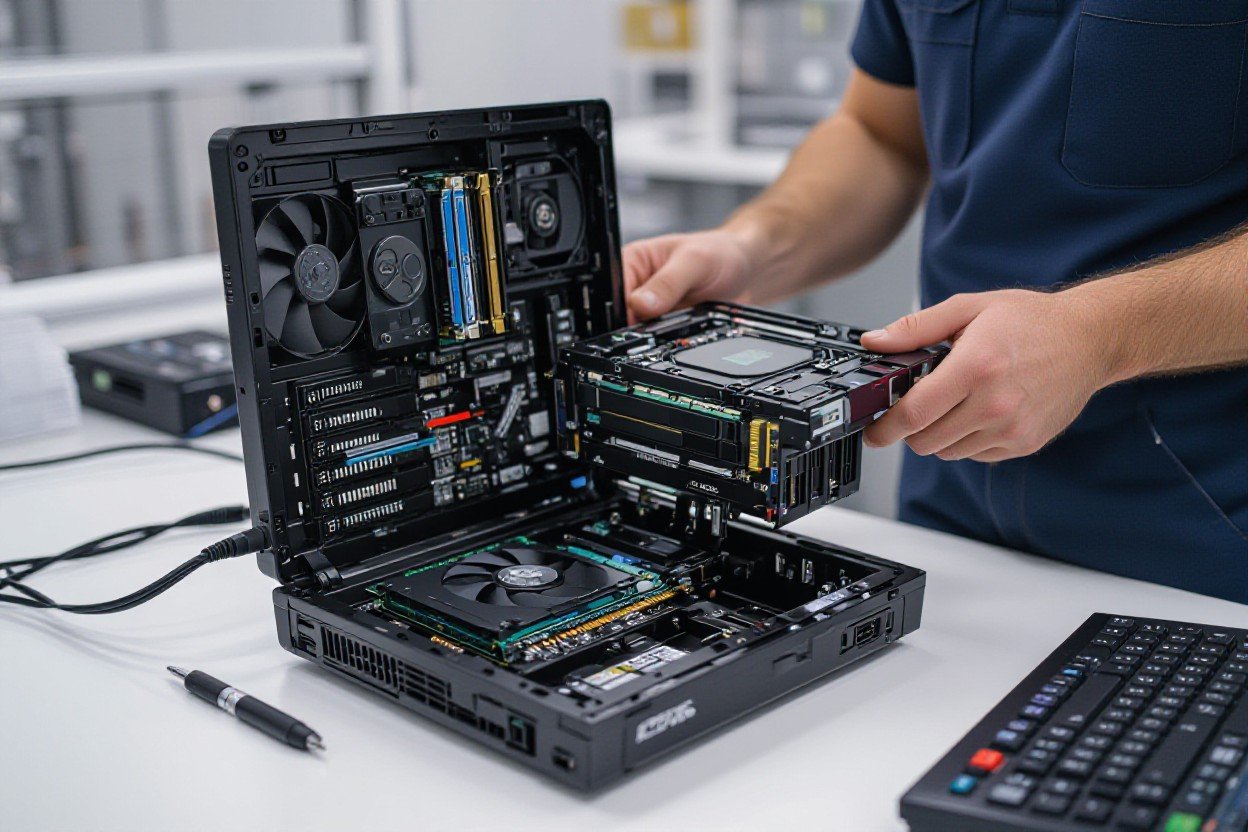

Why Upgrade Your RAM?
If your system feels sluggish when you juggle browser tabs, virtual machines, or big Photoshop files, upgrading RAM often gives the biggest real-world boost – honestly, swapping 8GB for 16GB can cut paging to disk and make app switching instant. You should check compatibility first – DDR4 vs DDR5, max capacity on your motherboard, and whether you need matched sticks for dual-channel. In my experience the install is quick, but if a stick isn’t recognized a BIOS update or reseating usually fixes it.
What’s the Big Deal About RAM?
RAM holds the working data your CPU needs right now, so more capacity and higher speed mean less swapping to slow SSDs or HDDs; Windows 10/11 idle uses about 2-3GB, Chrome tabs eat 50-200MB each, and games can want 8-12GB minimum. And channel config matters – dual-channel roughly doubles memory bandwidth compared to single-channel, so populating the correct slots and matching modules actually changes performance, not just capacity.
Can More RAM Actually Boost Performance?
Yes, up to a point: going from 8GB to 16GB often eliminates stutters and paging for gaming and everyday multitasking, while 32GB+ benefits video editing, large Photoshop projects, and running multiple VMs. You’ll see lower minimum FPS in games, fewer hiccups when streaming, and faster exports in Adobe Premiere; but if your workload never uses the extra memory, adding more yields diminishing returns – it’s about matching RAM to real usage.
Practical tip – check the motherboard’s supported speeds and max per slot before buying, and enable XMP/DOCP in BIOS to actually hit rated MHz (I had to update BIOS once to get 3200MHz sticks running correctly). If a new stick isn’t recognized, reseat it, try different slots, test one module at a time, and check voltage/timings; mixing old and new DIMMs can force the kit down to the slowest speed, so matched pairs are usually the safest bet.
How to Check Your Current RAM Situation
Start by checking your OS and BIOS: Windows Task Manager shows total, speed and slots used; macOS About This Mac > System Report gives type and slots; Linux free -h and sudo dmidecode -t memory list details. Physically open the case if needed to count DIMMs and note labels like DDR4 3200MHz. Look for mismatched sticks, total capacity vs usable, and how many slots your motherboard supports – that tells you if you can add more.
What Tools Can Help Me Figure It Out?
Use built-in tools first: Ctrl+Shift+Esc on Windows then Performance > Memory, Activity Monitor on Mac, free -h on Linux. For deeper data try CPU-Z, Speccy or HWiNFO which show DIMM sizes, ranks and timings like CL16 at 3200 MHz. BIOS/UEFI and your motherboard manual give supported max RAM and slot layout. If you want automated checks, Crucial and Kingston online tools detect compatible kits by model.
Seriously, How Much RAM Do I Already Have?
Open Task Manager or System Report and look for something like “16 GB (2 x 8 GB) DDR4 3200 MHz” and note “Slots used: 2 of 4”. If it says 16 GB usable but installed 16 GB, great; if usable is lower, integrated GPU or reserved hardware is likely eating some. And yes, sometimes the BIOS reports slightly different speeds – that’s normal if XMP isn’t enabled.
Dig a bit deeper: check each slot so you know if sticks are matched and running dual-channel, because two 8 GB sticks at 3200 MHz will outperform one 16 GB stick at 2666 MHz. If your board tops out at 64 GB, don’t buy 128 GB sticks expecting them to work. For troubleshooting, reseat modules, try one stick at a time, update BIOS, and run memtest86 to catch faulty RAM – I mean, it’s annoying but it works.
Can I Just Grab Any RAM?
Short answer: no, you can’t just grab any stick and expect it to work. You need the right DDR generation (DDR4 vs DDR5), the correct form factor (DIMM for desktops, SODIMM for laptops), and to meet your motherboard’s max per-slot capacity and supported speeds. For example, a DDR5 desktop module won’t fit a DDR4 slot, and buying 64GB sticks when your board tops out at 32GB is wasted money. Honestly, check the manual first – you’ll thank me later.
My Take on Compatibility Factors
Here’s the thing, compatibility boils down to a few hard checks:
- DDR generation and physical keying (DDR3/4/5)
- Form factor: DIMM vs SODIMM
- Speed, voltage and timings (e.g., 3200 MT/s, 1.2V, CL16)
- ECC vs non-ECC and motherboard channel support
Knowing these and consulting your board’s QVL or manual stops you from buying the wrong kit and saves hassle when you install it.
What Specs Should I Actually Look For?
Start with capacity: 16GB is the sweet spot for gaming, 32GB if you do video editing or heavy multitasking, 8GB is the bare minimum. Then pick speed: DDR4 3200 MT/s or DDR4 3600 MT/s are common; for DDR5 aim 4800 MT/s and up. Check CAS latency (CL) too-CL16 at 3200 is solid. And enable XMP/DOCP in BIOS to run rated speeds, otherwise sticks will default lower.
More detail: if you’re on Ryzen, faster RAM really helps-3600 MT/s CL16 often gives the best price/performance, while Intel systems do fine with 3200-3600 MT/s; DDR5 benefits show up above 4800 MT/s but latency climbs so real-world gains vary. Match modules (same size, speed, brand) or expect the system to default to the slowest stick. Also, check per-slot limits-many consumer boards handle 2x32GB or 4x32GB for 64-128GB total-update BIOS if a new RAM type isn’t recognized, and if sticks vanish try reseating, single-stick testing, or checking the QVL list for known-good modules.
The Real Deal About RAM Types
| DDR3 | Older desktops/laptops, ~1.5V, 240-pin DIMM; not compatible with modern DDR4/DDR5 sockets and limited to ~1600-2133 MHz. |
| DDR4 | Mainstream choice: 1.2V, 288-pin DIMM, typical 2133-3600+ MHz, wide motherboard/CPU support – check your board’s QVL and BIOS updates. |
| DDR5 | Higher base speeds (4800+ MHz), on-die ECC, power management on module, needs compatible CPU/motherboard and often BIOS updates – pricier at launch. |
| ECC | Error-correcting modules for servers/workstations; requires ECC-capable CPU and motherboard, used where stability > raw speed. |
| SO-DIMM | Laptop/compact form-factor RAM; different physical size and pinout than desktop DIMMs – you can’t drop SO-DIMM into a desktop slot. |
- Check your motherboard manual and QVL before buying – ghosted compatibility bites, honestly.
- Match kit speeds and timings for dual-channel stability; mixing can work but it’s messy.
- BIOS updates often add DDR5/early memory fixups – update if your board vendor suggests it.
- Test new sticks with MemTest or Windows Memory Diagnostic if your PC acts flaky after install.
Do I Need DDR4 or Is DDR5 Worth It?
If you’re gaming on a current-gen CPU or doing light content work, DDR4 at 3200-3600 MHz usually gives great value; DDR5 brings higher bandwidth (4800+ MHz) and future-proofing but needs a compatible motherboard/CPU and often costs more – think 20-40% premium early on. If you’re building a heavy multitasker, video editor, or want to squeeze every bit of bandwidth, DDR5 is attractive, but for many users DDR4 still makes more sense right now.
What’s the Difference, Anyway?
At a glance it’s about pins, voltages and bandwidth: DDR4 is 288-pin and 1.2V while DDR5 jumps frequencies and adds on-die ECC and power-management features on the module itself; latency can be higher on DDR5 despite bandwidth gains, so real-world wins depend on workload. You need matching slots – they aren’t interchangeable – and the BIOS plus CPU must support the generation you pick.
Digging deeper, here’s what I see in practice: latency vs frequency tradeoffs mean DDR5 doesn’t always double performance just because clocks are higher – gaming often shows small gains, heavy compute and memory-bound tasks show bigger ones. Also, mixing kits or running unmatched speeds forces the system to the lowest common denominator, so buy matched pairs, enable XMP/EXPO carefully, and if things boot weirdly try lowering speed or tightening timings, reseating sticks and re-running BIOS updates; if the OS won’t see full capacity check slots one-by-one to rule out bad modules or improper seating, and run memtest86 to be sure.
Thou should always verify your motherboard’s supported RAM list and be ready to update BIOS before swapping generations.
Here’s How to Install RAM Like a Pro
Step-by-Step Installation Tips
You should match module type and speed to your board and CPU – DDR4 vs DDR5, 3200 MHz vs 2666, and voltage (1.2V vs 1.35V) matter; check your motherboard QVL and BIOS. Populate the recommended slots (A2/B2 on many boards) for dual-channel, align the notch, press until both clips snap and you hear a click. If it won’t POST, test single sticks, try different slots, and update BIOS – honestly, that usually sorts 70% of problems.
- Check compatibility: DDR generation, capacity per slot, and XMP/JEDEC profiles.
- Power down, unplug the PSU, and ground yourself before touching modules.
- Open DIMM latches, seat module evenly – don’t force, it’ll snap in with a firm press.
- Test one stick at a time to isolate bad modules or slots.
- After booting, check BIOS for total capacity and frequency, enable XMP if you want rated speed, and run MemTest86 or Windows Memory Diagnostic.
Quick Install & Troubleshoot
| Check | Tip / Example |
|---|---|
| Module Type | Match DDR4 vs DDR5; mixing gens won’t work. |
| Speed & Voltage | 3200 MHz often uses 1.35V with XMP; CPU/mobo must support it. |
| Slot Order | Use A2/B2 first for dual-channel on most boards. |
| No POST / Not Recognized | Reseat, test single stick, update BIOS or clear CMOS. |
Don’t Forget About Safety and Static
You should use an anti-static wrist strap connected to the case (most have a 1 MΩ resistor) or at least touch the metal chassis for a few seconds before handling RAM; work on a hard surface, not carpet, and keep modules in anti-static bags until you’re ready. Hold modules by the edges, avoid touching the gold contacts, and unplug the PSU then press the power button for 5-10 seconds to drain residual charge – honestly, that simple routine saves headaches.
Static discharges can be thousands of volts from clothes or carpets while RAM tolerances are low – damage might be invisible, causing intermittent faults later. So, use an anti-static mat if you have one, don’t slide modules across the socket, and store sticks back in their foam or bags when not installing. If you suspect ESD damage, try the module in a known-good system, swap slots, and run diagnostics; BIOS beep codes, POST behavior, and MemTest86 will tell you if a stick is flaky.

Common Issues After Upgrading – What Gives?
Look, upgrades don’t always go smooth. You might see less RAM than expected, boot loops, random crashes, or a system that flat-out ignores new sticks. Often it’s a compatibility issue – DDR4-3200 installed on a board rated for 2666 will run at the lower speed, high-density 16GB modules may be unsupported on older laptops, and a 32-bit OS will only use ~4GB. BIOS versions, wrong slots, or faulty modules are usually the culprits.
Why Won’t My Computer Recognize the New RAM?
Because there’s a mismatch somewhere – speed, voltage, or physical type. DDR3 and DDR4 won’t fit each other, mixing brands and timings can confuse the memory controller, and some motherboards need a BIOS update to accept high-density 16GB sticks. Also check that the RAM is seated fully and in the correct slot (A2/B2 for dual-channel), and that you’re not running a 32-bit Windows which caps usable RAM at about 4GB.
How to Troubleshoot Like a Tech Ninja
Start simple: power down, reseat sticks, then boot with one module in the recommended slot (usually A2). Swap sticks and slots to isolate a bad DIMM or slot. Clear CMOS to reset timings, enable XMP cautiously, and update BIOS if needed. Run MemTest86 from USB for a full pass, or Windows Memory Diagnostic for a quick check. Use CPU-Z to confirm speeds, timings, and voltages so you know what your system actually sees.
More detail helps: create a MemTest86 boot USB and let it run 4-6 passes – a single error usually means bad RAM or bad slot. If errors only occur in one slot, that’s a motherboard issue. For DDR4-3200 modules set XMP to 1.35V in BIOS, otherwise they’ll drop to JEDEC defaults like 1.2V and may become unstable. And yes, mixing a 3200MHz stick with a 2666MHz stick will clock both down to 2666MHz – annoying but expected.
My Tips to Make the Most of Your Increased RAM
Upgrade the slots properly – populate A2/B2 for dual-channel on most boards, match speeds and timings if you mix kits, and enable XMP if you want DDR4-3200 instead of stock 2133. Close heavyweight background apps, set a sensible pagefile (Windows: 1x to 1.5x RAM if you run large projects), and test stability after install with MemTest86 for 2-4 hours. Any time you see crashes or odd performance dips, reseat modules and check BIOS settings.
- Enable XMP in BIOS for advertised speeds when safe
- Use A2/B2 slots first for dual-channel
- Run MemTest86 for 2-4 hours after install
- Set Windows pagefile to 1x-1.5x RAM if you work with big files
- Update motherboard BIOS if RAM isn’t recognized
What Software Should I Use?
Use Task Manager or Activity Monitor to spot memory-hungry apps, then pull up HWiNFO or CPU-Z to confirm RAM speed, timing and channel status; HWiNFO shows real-time DRAM frequency and channel, CPU-Z lists SPD info. For testing, run MemTest86 (bootable) or Windows Memory Diagnostic, and stress-check with Prime95 or AIDA64 if you want to push working sets – I usually do a 1-2 hour Prime95 run after big changes.
Is There Any Extra Maintenance I Should Do?
Do a visual check and quick clean every 6-12 months: dust can mess with seating and contacts, and BIOS updates often add better memory compatibility. If you swap hardware, test with MemTest86 for at least one full pass, and keep your system firmware current – that’s saved me a handful of weird boot issues.
When you reseat modules, power down, unplug, and ground yourself; unclip the DIMM, blow out dust with compressed air, then gently but firmly click the stick back in until both latches engage. Avoid rubbing contacts with abrasives – if needed, use 70%+ isopropyl sparingly on a lint-free cloth. After maintenance run one MemTest86 pass or Windows Memory Diagnostic to confirm stability, and note any BIOS setting changes like XMP so you can revert if problems crop up.